Reset two-factor authentication
Two-factor authentication (2FA) is required on TrustedLogin. If you still have access to your authenticator app and just want to switch to a new one, follow the steps below.
1. Open your user settings
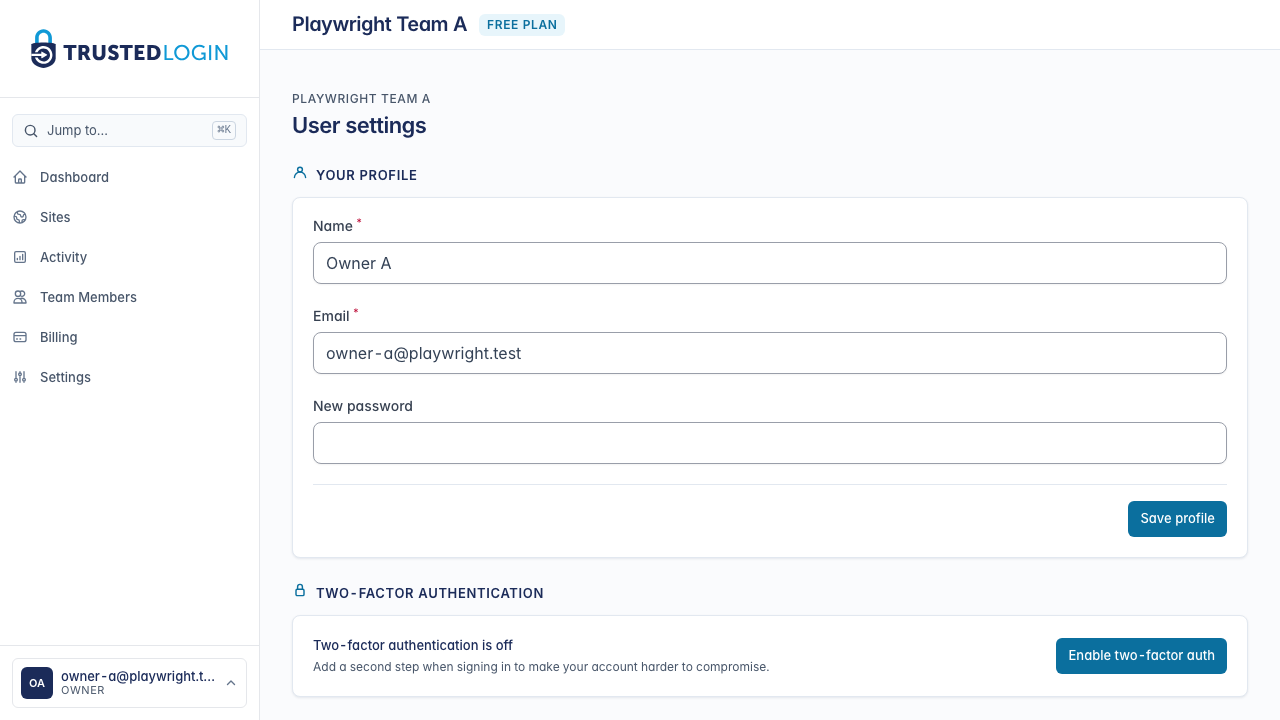
Click your avatar in the bottom-left of the sidebar and choose User settings. The page has two sections: your profile up top, and Two-factor authentication below it.
2. Check your current two-factor status
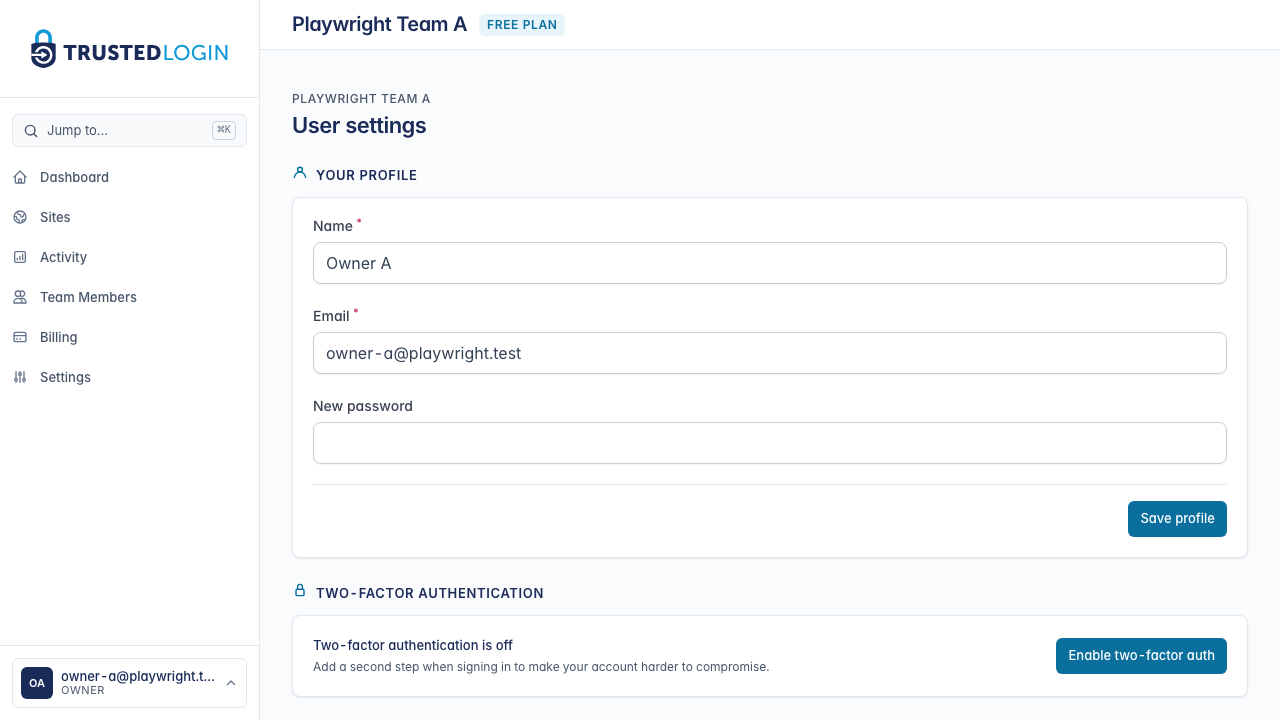
The 2FA card shows whether two-factor authentication is currently on for your account. If it says Two-factor authentication is off, follow the signup guide to enable it — you have to before you can use TrustedLogin.
If 2FA is on and working, but you want to move to a new authenticator app (or a new phone), the steps below will swap your enrollment without locking you out.
3. Scan the QR code in your new app
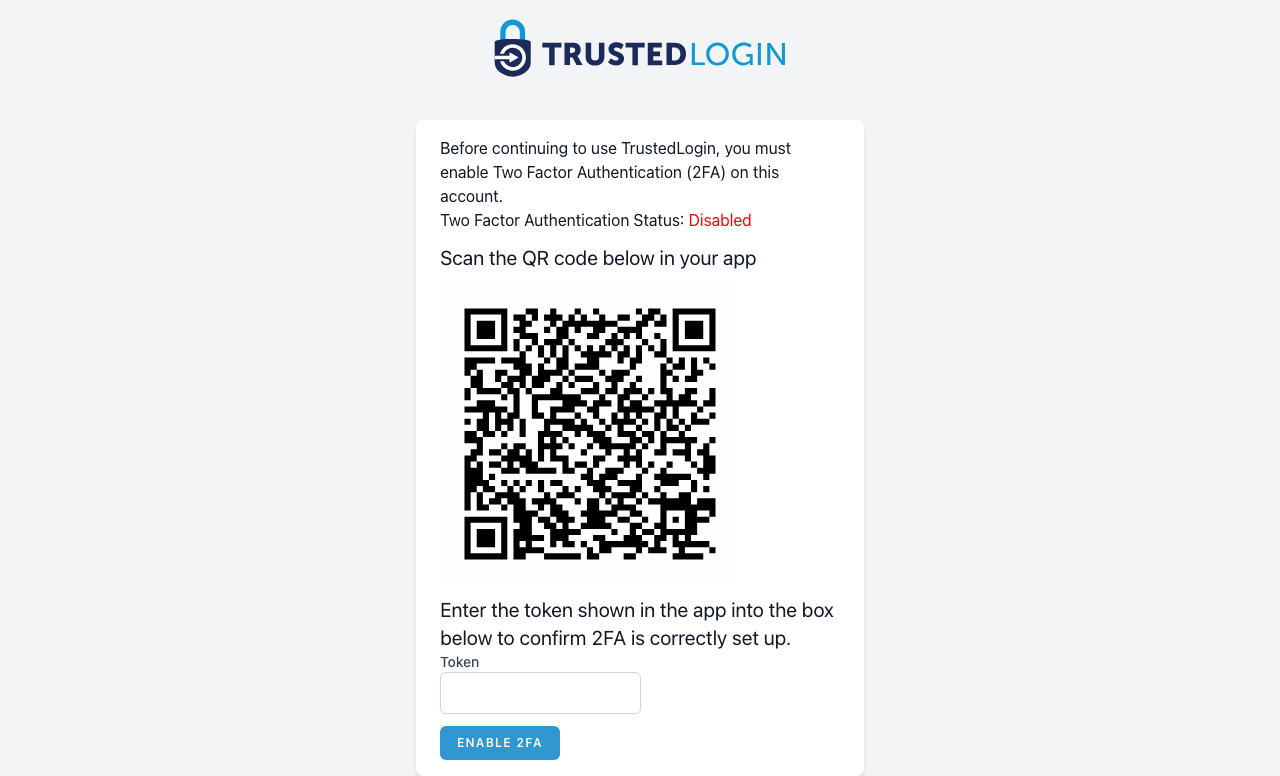
Open the Enable 2FA link to get back to the QR code and setup screen. If you're switching apps, scan the QR code with the new app — you'll see the new one start producing codes immediately. Leave the old app in place for now so you still have a working code if anything goes wrong.
4. Enter the current code to confirm
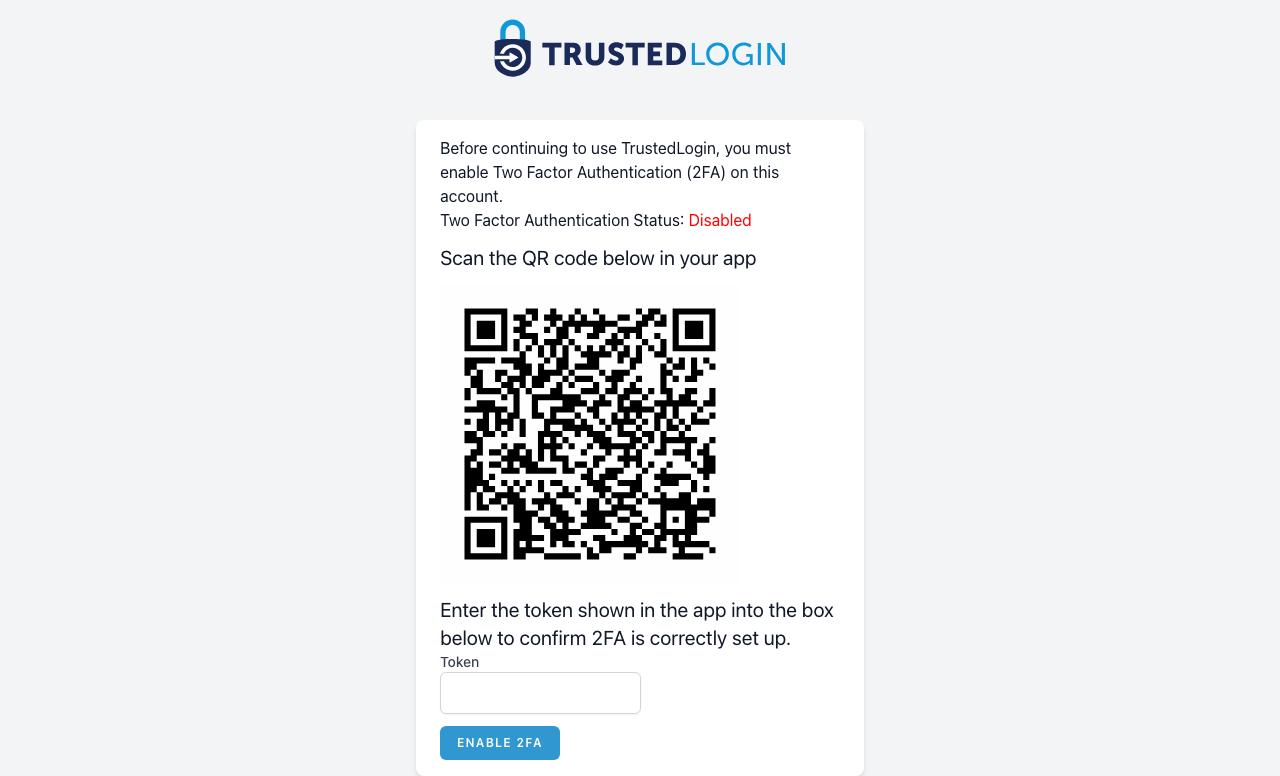
Type the six-digit code your new authenticator is showing into the Token field and click Enable 2FA. TrustedLogin checks the code — if it matches, your new app is now the one that controls your account, and the old app stops working.
Once the code is accepted, you're done. Delete the old entry from your previous authenticator app — it's no longer valid, but keeping dead entries around is confusing.
If you've lost access to your authenticator app
If your phone is gone and you can't get a code anymore, you're locked out of your account until a TrustedLogin admin resets 2FA on your behalf. We do this manually, because it has to be: automating it would mean anyone with your password could bypass 2FA too.
To request a reset:
- Email [email protected] from the address on your TrustedLogin account. We cross-check the address before acting — if you email from somewhere else we may ask you to prove you own the account.
- Include your account email and the name of your team.
- Be ready for a short identity-verification step — either a reply from the address on file or a quick video call, depending on the account's sensitivity.
Once we reset your 2FA, the next time you sign in TrustedLogin will walk you straight through enrolling a new authenticator — same QR-code flow as the first time you set it up. Expect the whole thing to take under an hour during business hours.
Why you can't turn 2FA off
TrustedLogin accounts carry keys that let your team sign into customer sites. A stolen password that could sign in directly would be a critical incident; 2FA is the single biggest defense against that scenario. Making it optional would shift that risk to every TrustedLogin user whether they wanted it or not. So: 2FA stays on for everyone, always.