Change plan or cancel
Plan changes — up, down, or off — all flow through Stripe's Billing Portal. TrustedLogin handles the plan mapping; Stripe handles the money.
1. Open your Billing page
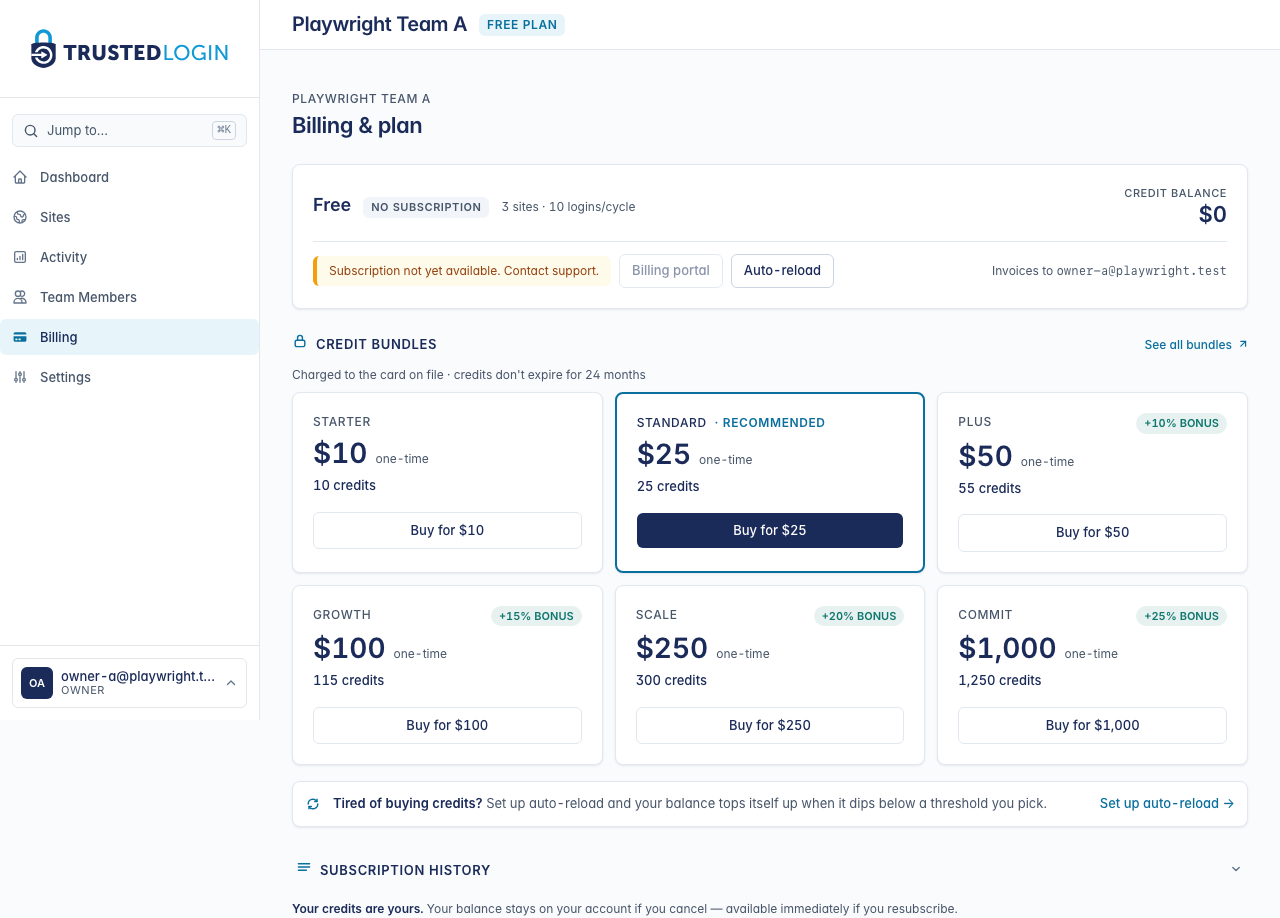
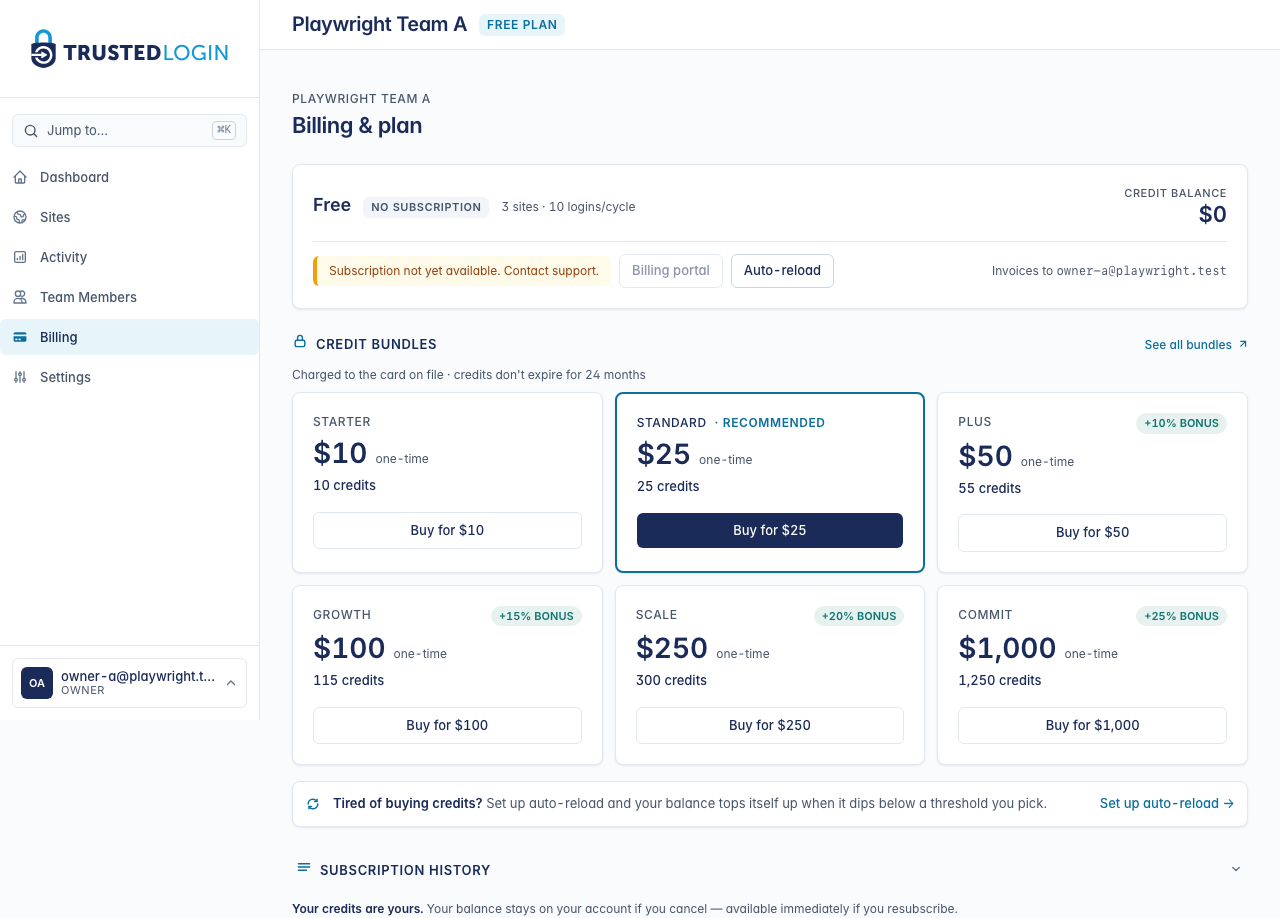
Billing in the sidebar takes you to the plan summary. The top card shows your current plan, next renewal date, and billing email. Every plan change starts from here.
2. Understand what your current plan covers
Before changing anything, check what you're on:
- Plan name — Free, Starter, Growth, Scale, and Enterprise are the common ones.
- Sites and logins per cycle — the caps. Any login beyond this is billed from your credit balance (so running out of credits = hitting a hard stop, not overage charges).
- Next invoice — the date your card will be charged for the next cycle. Changes you make before this date take effect on the next cycle; mid-cycle changes prorate.
3. Click Manage subscription
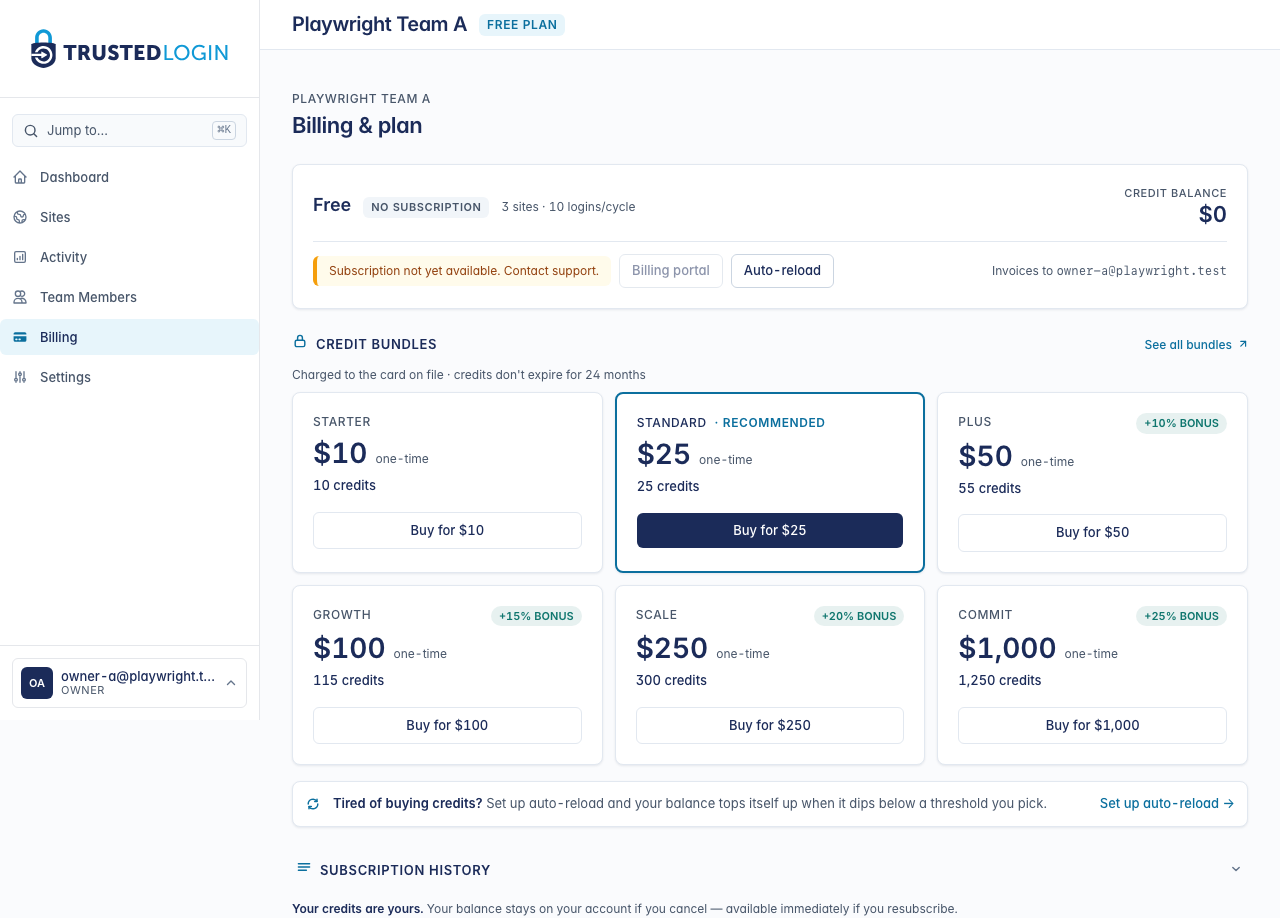
The Manage subscription button opens the Stripe Billing Portal. Stripe handles the plan change itself — we don't build our own checkout for it, because letting Stripe own the card data, the tax calculation, and the invoices means one less system that can leak them.
You're signed in automatically — no extra password to enter. Stripe's portal is a different tab; when you're done, close it and your plan is already updated on our side through Stripe webhooks.
4. Change plan, update card, or cancel
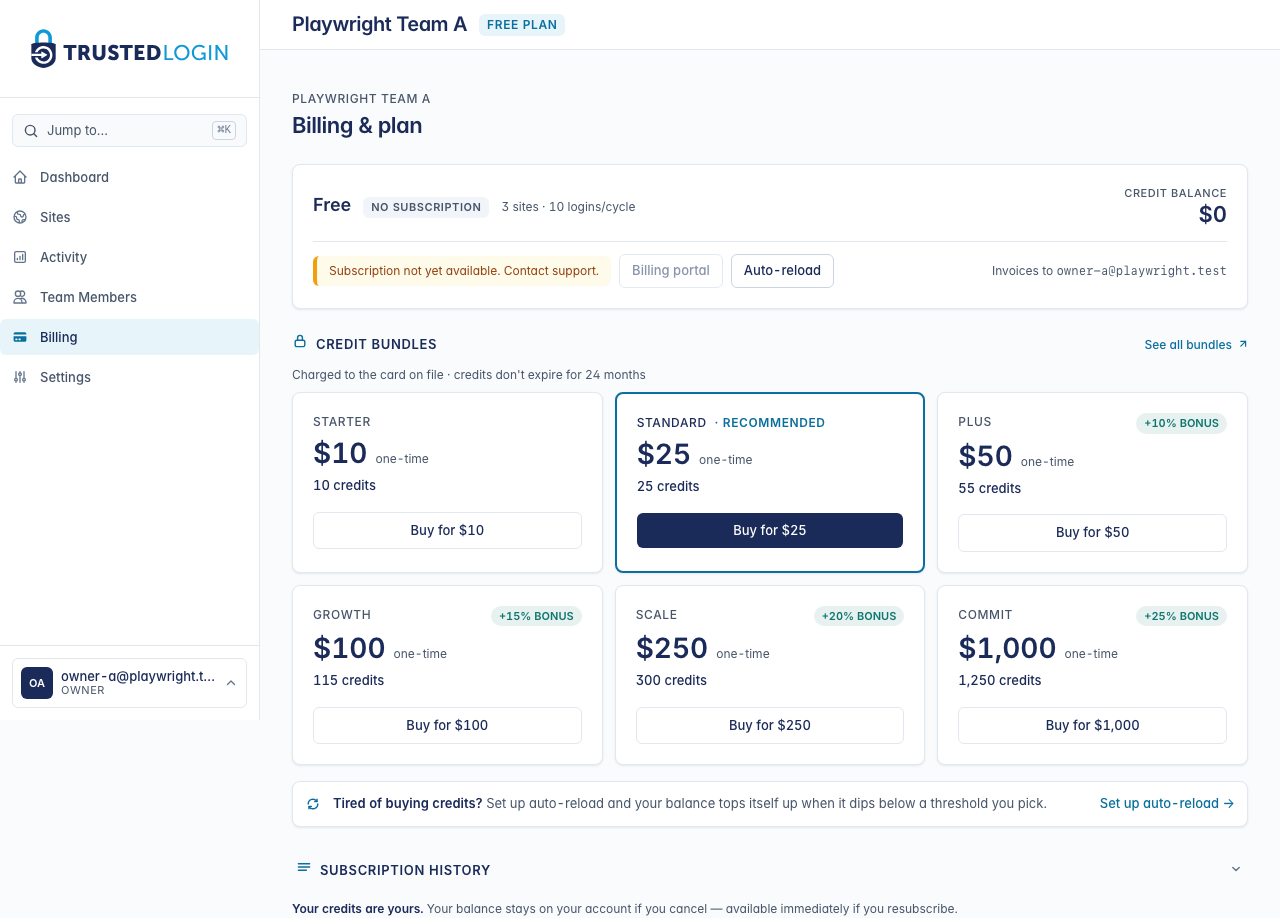
The Stripe portal has three relevant actions:
Change plan. Picks a new plan from the list — effective immediately, prorated against the current cycle. If you're upgrading, the difference is charged now; if you're downgrading, the difference becomes credit that offsets your next invoice.
Update payment method. Add or replace the card on file. The update applies to every future charge, including auto-reload.
Cancel subscription. Ends the subscription at the end of the current cycle — you keep all the features you're paying for until the date your card would have been charged next. After that, you drop to the Free plan.
5. Your credits stay yours
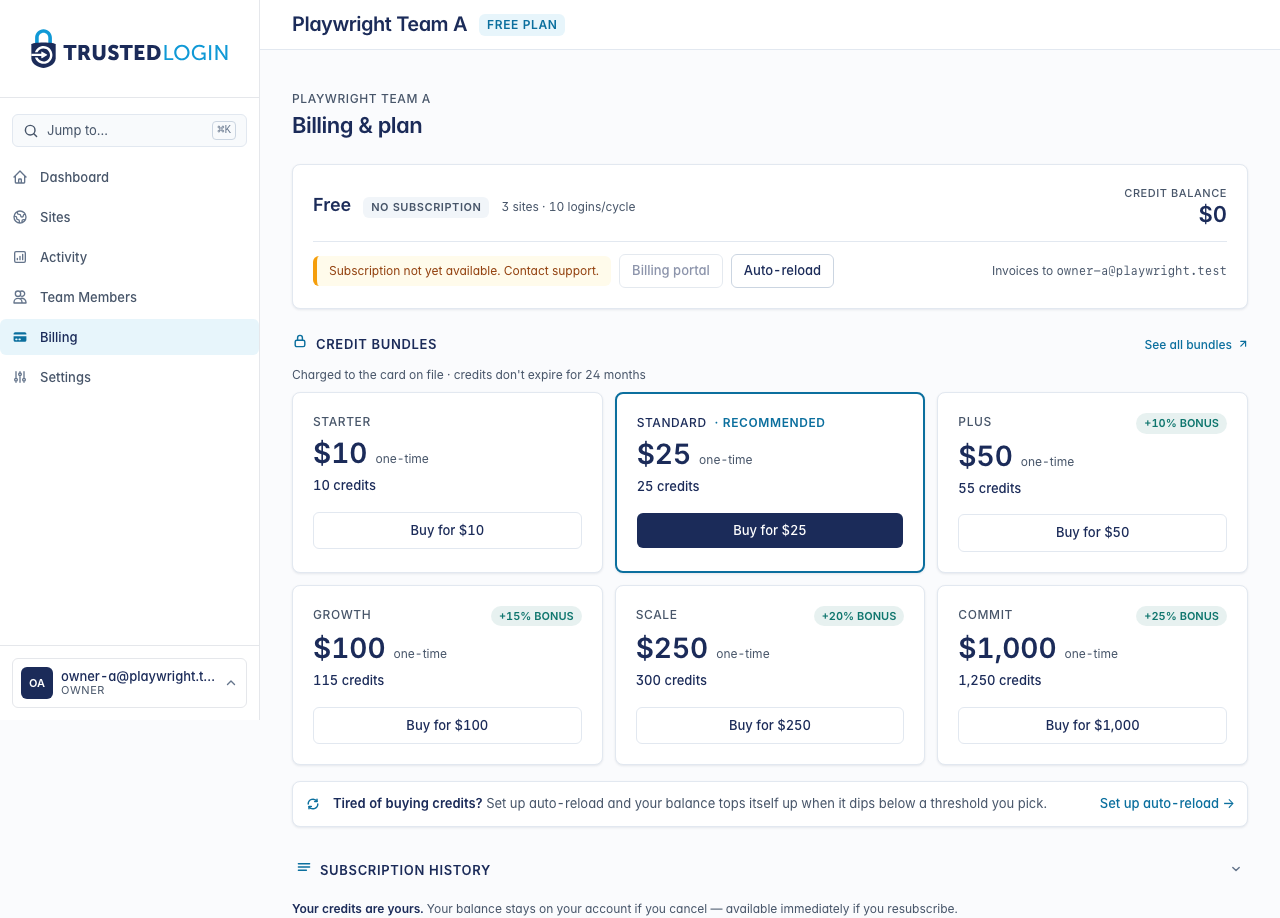
Credits you've bought — through auto-reload or a one-time bundle — stay on your account if you downgrade or cancel. They never expire while your team is active. If you resubscribe later, the same credits are still there and can cover logins against the new plan.
Credits only disappear if you delete your team. Cancelling a subscription doesn't delete the team.
Frequently-asked concerns
Will I be billed on my next card statement? If you cancel, no — the cancel takes effect at the end of the current billing cycle and your card is not charged again. If you downgrade mid-cycle, you'll see a prorated credit on your next invoice.
Do I lose access immediately when I cancel? No. Cancel is an end-of-period action. You keep every feature of the plan you were on until the cycle closes — so cancelling two days into a monthly plan still gives you 28 more days of paid access.
Can I get a refund instead of a credit? For annual plans or edge cases (you signed up by mistake, you were double-charged), yes — contact support with your account email and we'll handle it manually.