Install the Connector and connect your team
The Connector is a WordPress plugin you install on your site — not your customers' sites. It's the bridge between TrustedLogin and the WordPress installations your support team works from. This guide walks through both halves of the setup: copying your API keys from TrustedLogin, then pasting them into the Connector plugin on your own site.
1. Open your team settings on TrustedLogin
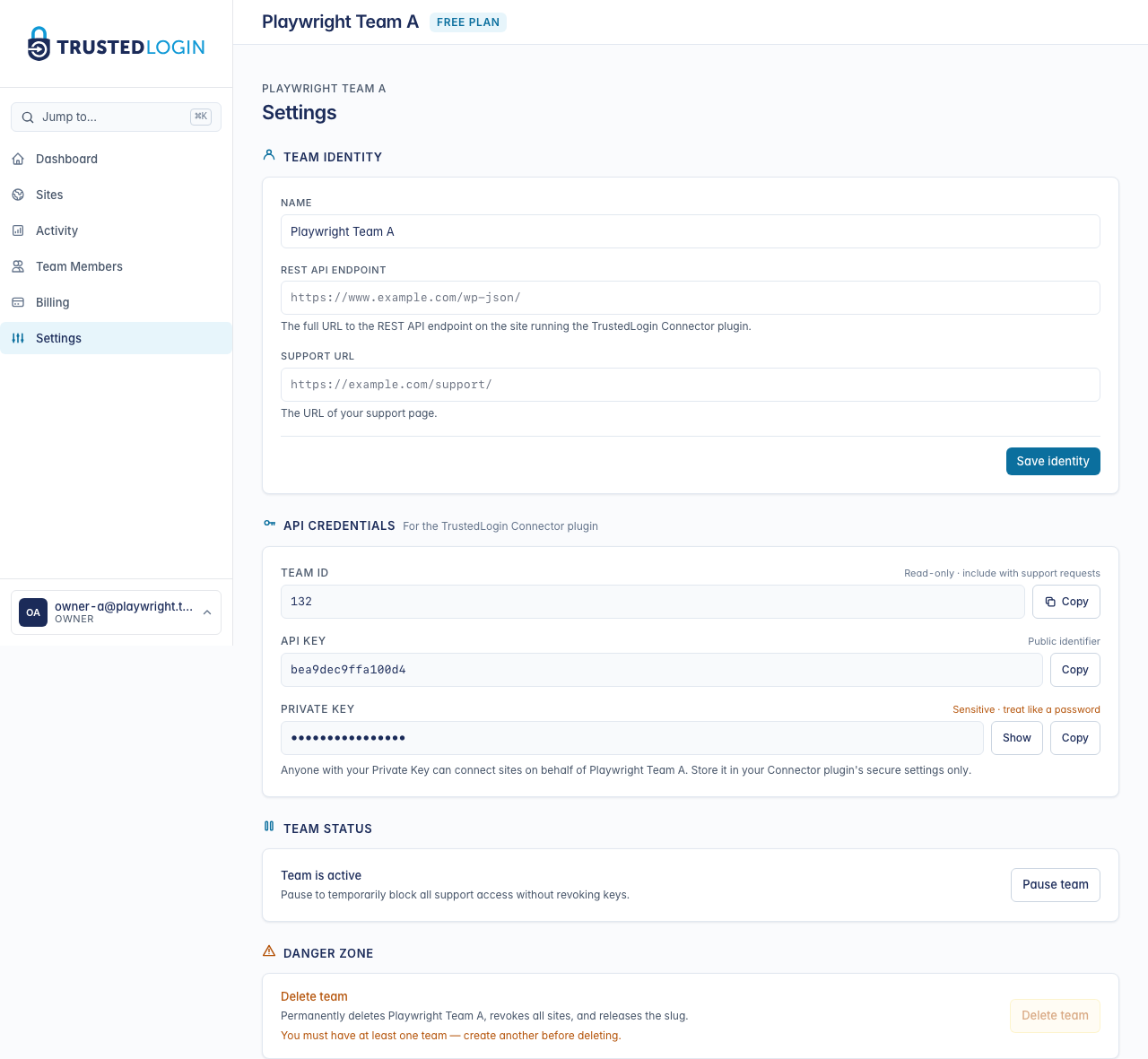
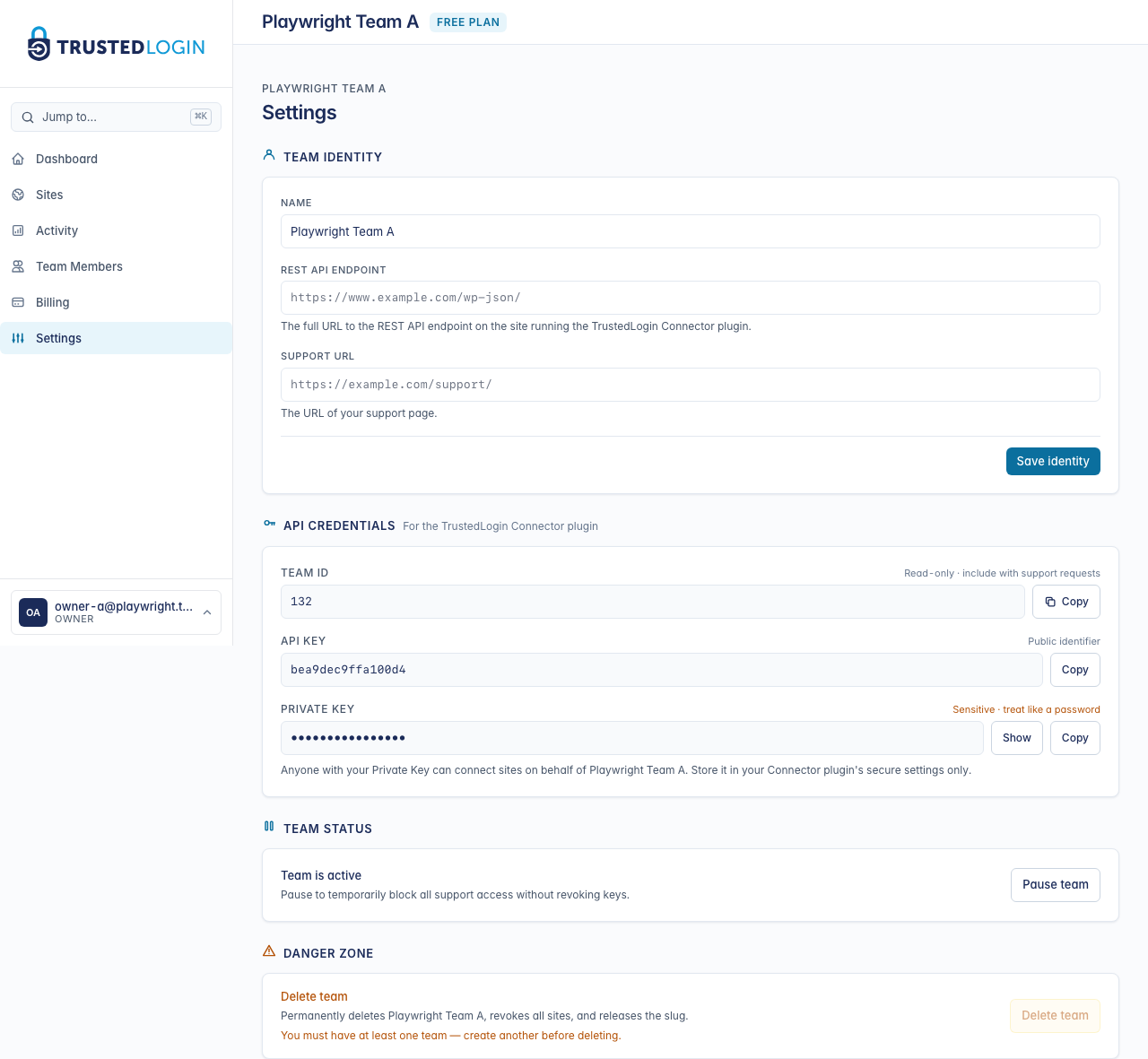
Your dashboard lives at trustedlogin.com/admin. Once you're signed in, open Team Settings from the sidebar. Everything you'll paste into the Connector lives on this page.
2. Fill in your team identity
The Team name appears on your customers' screens when they grant you access — pick something they'll recognize (usually your product's name).
The REST API endpoint is the URL of the WordPress site where you'll run the Connector plugin, with /wp-json/ on the end — so if your Connector lives at https://support.example.com, enter https://support.example.com/wp-json/.
The Support URL is where customers will land if they need help after a grant expires. A good choice is your product's help desk or contact page.
3. Copy your API credentials
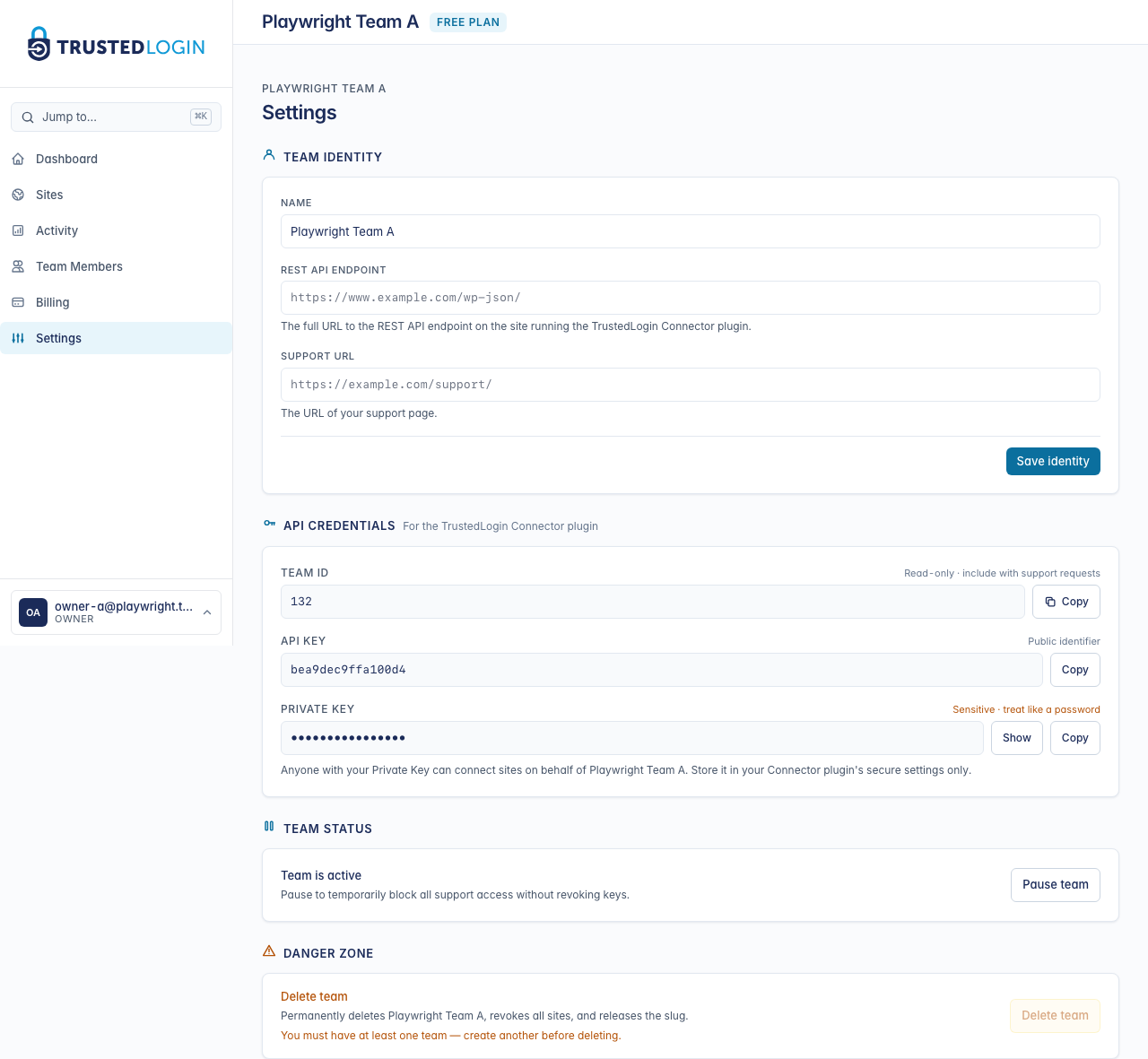
Scroll to the API credentials section. You need three values to paste into the Connector:
- Account ID — a short number that identifies your team.
- Public Key — a 16-character hex string.
- Private Key — another 16-character hex string. Keep this one private — anyone who has it can impersonate your team until you rotate it.
Each value has a Copy button next to it. Leave this tab open — you'll need them in the next step.
4. Open TrustedLogin in your WordPress admin
Install the Connector plugin on the WordPress site you use for support (download the latest release from the TrustedLogin Connector repository, upload the zip via Plugins → Add New → Upload, and activate).
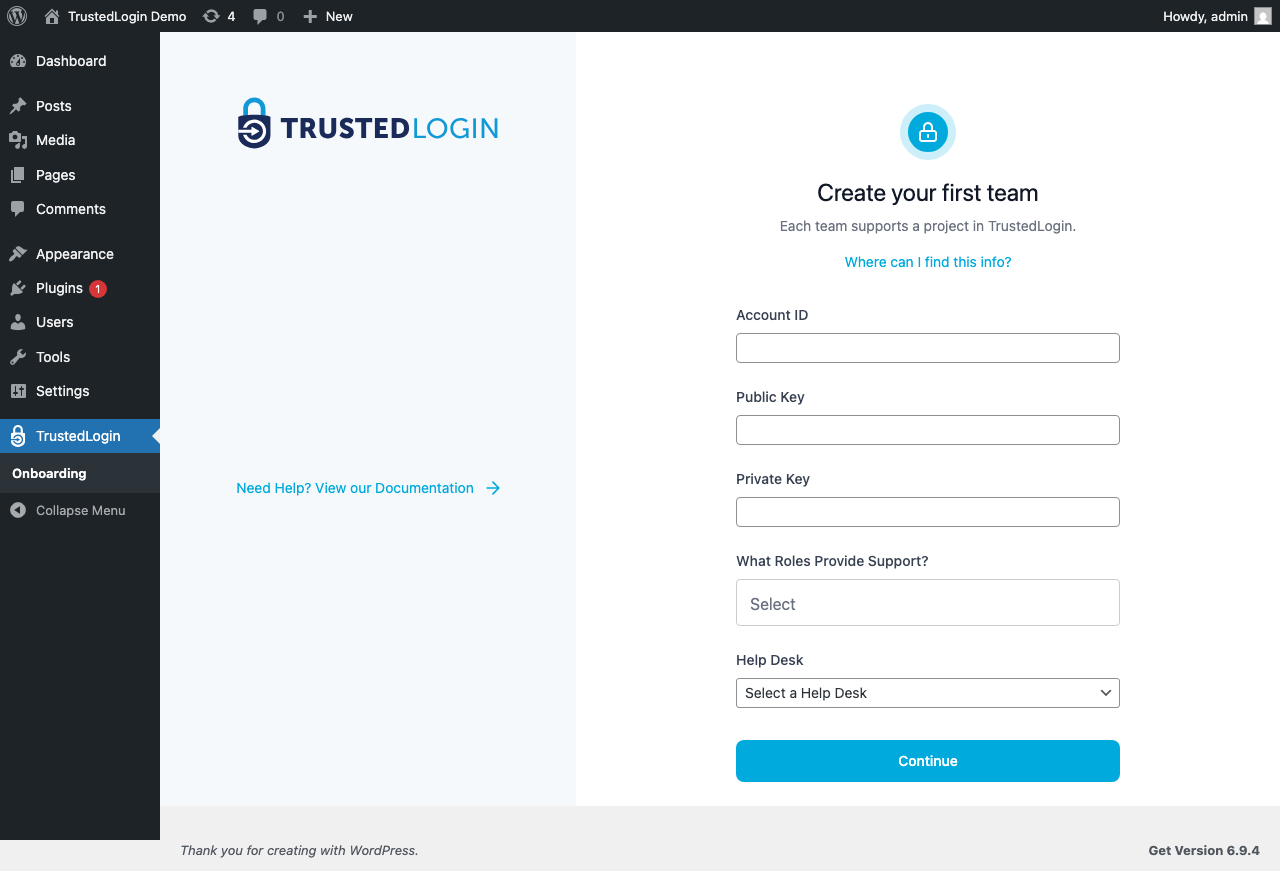
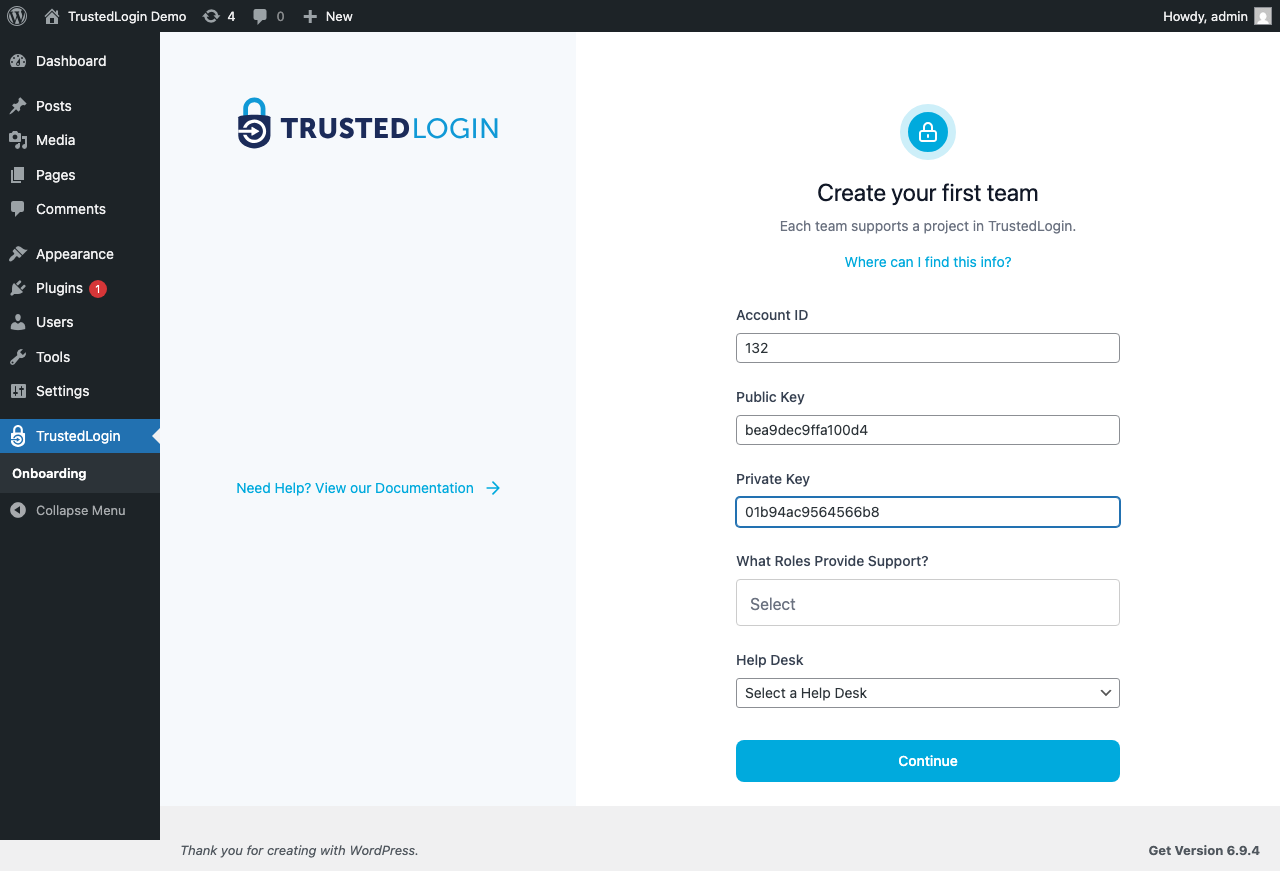
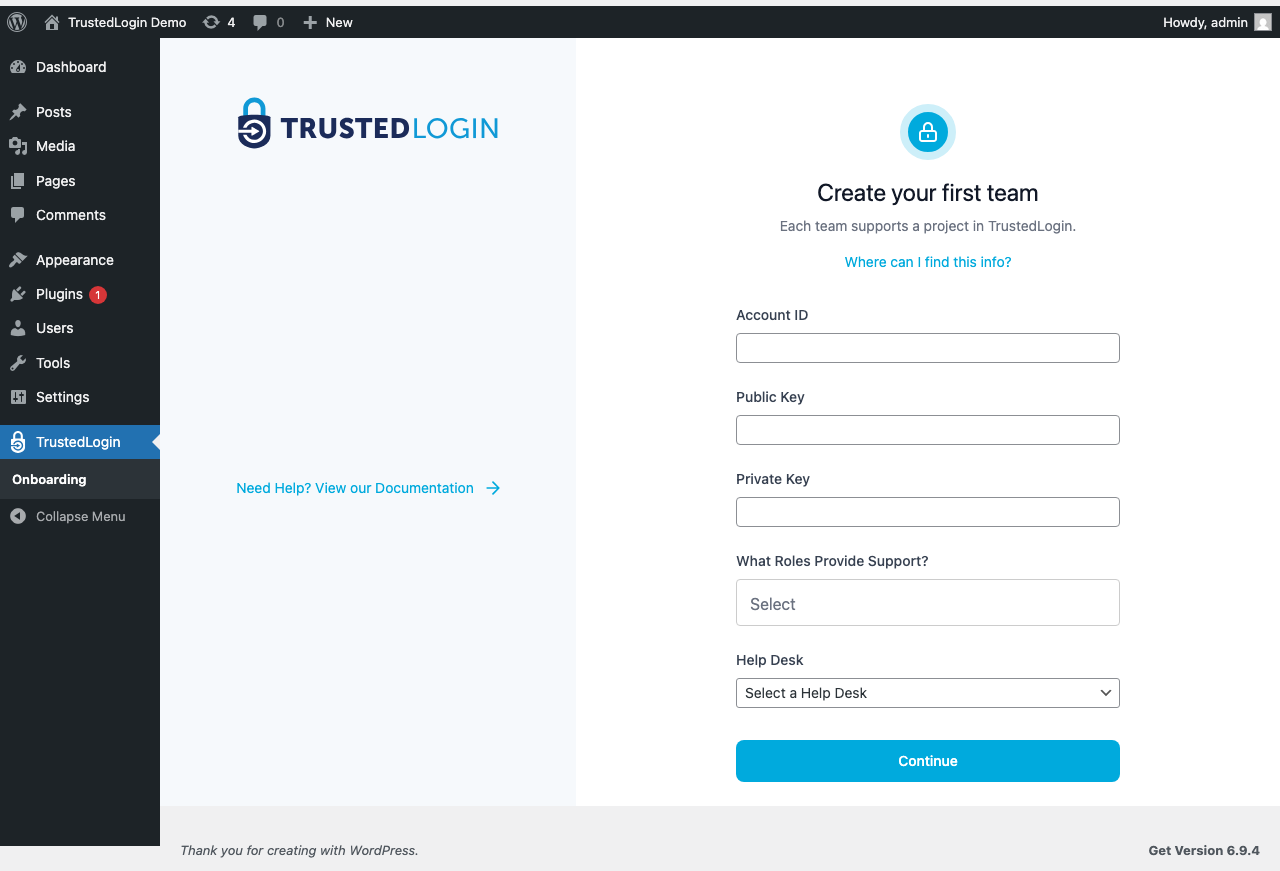
After activation, TrustedLogin appears in your WordPress sidebar. On a fresh install it opens the Create your first team onboarding screen — this one form handles everything you need to paste from TrustedLogin.
5. Paste your Account ID, Public Key, and Private Key
The onboarding form asks for the three values you just copied from your Team Settings page on TrustedLogin:
- Account ID
- Public Key
- Private Key
Paste each one into the matching field. A link next to the form — Where can I find this info? — takes you back to the right TrustedLogin page if you've lost the tab.
6. Pick the support roles that can use TrustedLogin
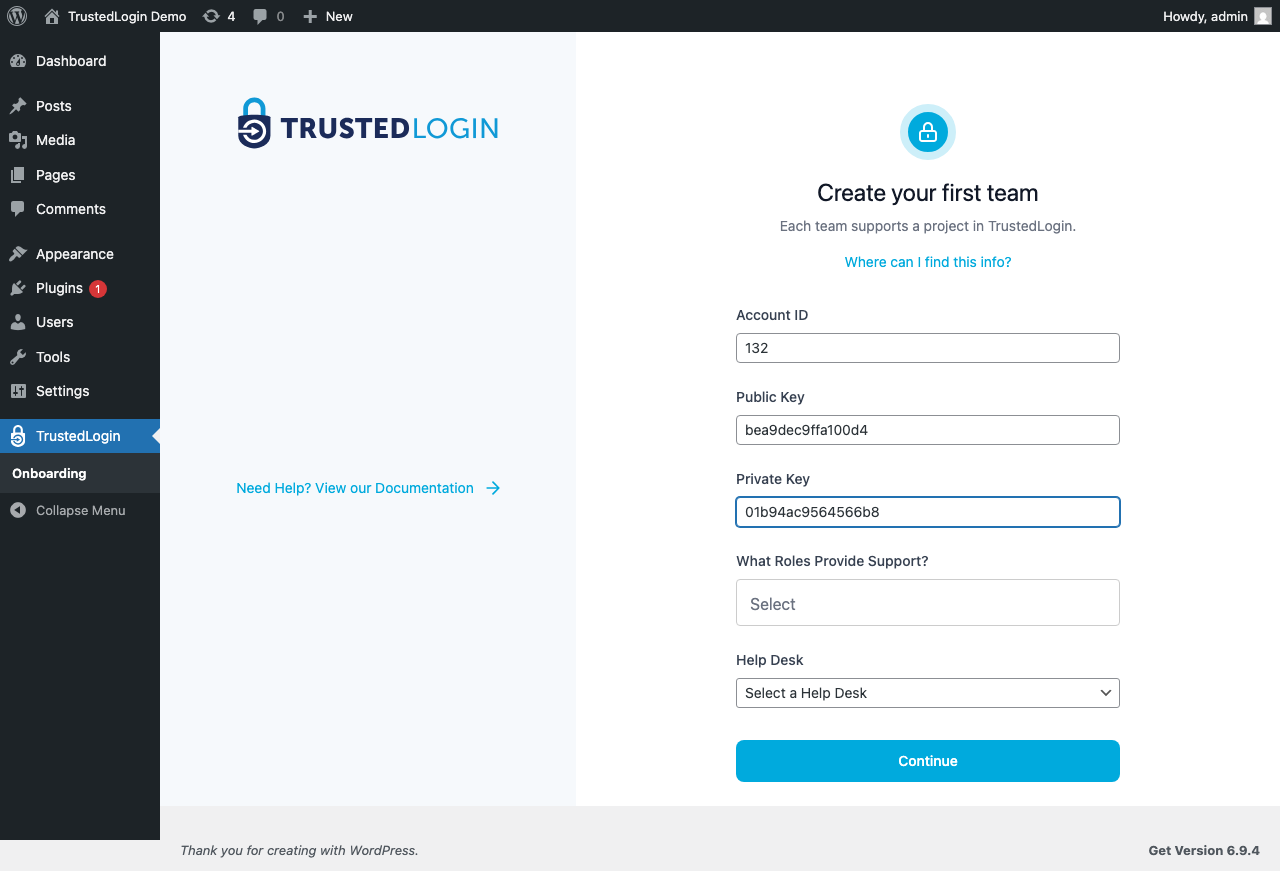
The What Roles Provide Support? picker controls which WordPress users on this site can click the Log-in button to reach a customer. Administrators and Editors is a common choice for a small support team; larger teams often create a dedicated Support role and limit TrustedLogin access to that.
The Help Desk dropdown is optional — if you use Help Scout, Zendesk, or FreshDesk, picking one here enables the in-ticket login button. You can add it later; it's not required to finish onboarding.
7. Confirm the connection
Click Continue. The Connector contacts TrustedLogin with your keys and, if everything matches, shows All Teams Connected with your team listed.
If you don't see that banner, the most common cause is a typo or extra whitespace in one of the pasted keys. The second most common is the REST API endpoint on the TrustedLogin side missing the trailing /wp-json/. Double-check both before digging further.
8. You're done — head back to your dashboard
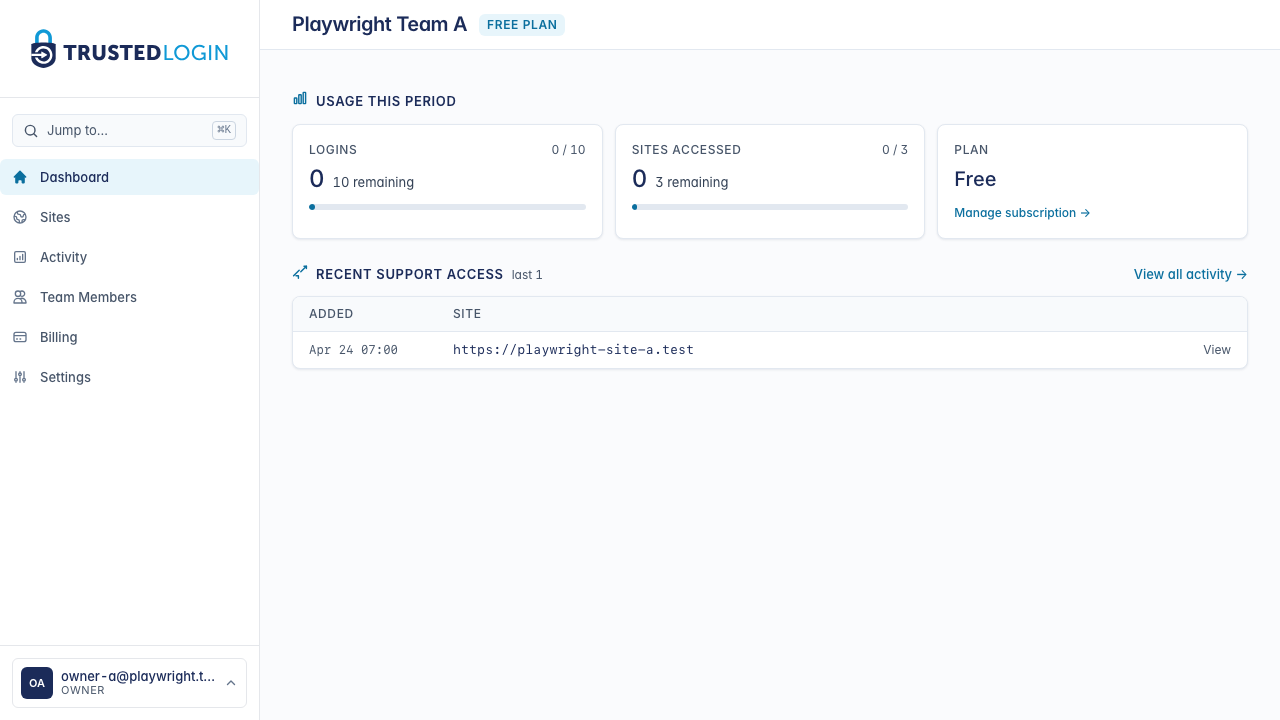
Once the Connector says All Teams Connected, you're done with setup. Your customers can now grant you secure access, and those grants will show up on your dashboard here.
You still need to add TrustedLogin to the plugin or theme your customers install on their own sites — that's the piece that puts the Grant Support Access button in front of them. See the Client SDK guide for how to wire it in.
What if 'All Teams Connected' doesn't appear?
Three things to check, in order:
- The REST API endpoint on your TrustedLogin Team Settings page must include
/wp-json/at the end. This is the single most common cause. - The keys have no leading or trailing whitespace. A browser-copied Private Key sometimes picks up an invisible character; paste into a plain text editor first if you're unsure.
- The Connector site is reachable from the internet. TrustedLogin's network needs to hit the REST API endpoint to complete the handshake — a dev install behind a VPN or firewall won't connect. The Connector troubleshooting guide walks through the less-common failures.