Set up auto-reload
Auto-reload charges your card for a credit bundle automatically whenever your balance dips below a threshold you pick. It's how you make sure a support ticket at 2am doesn't end with a customer waiting because your credit hit zero.
1. Start from your Billing page
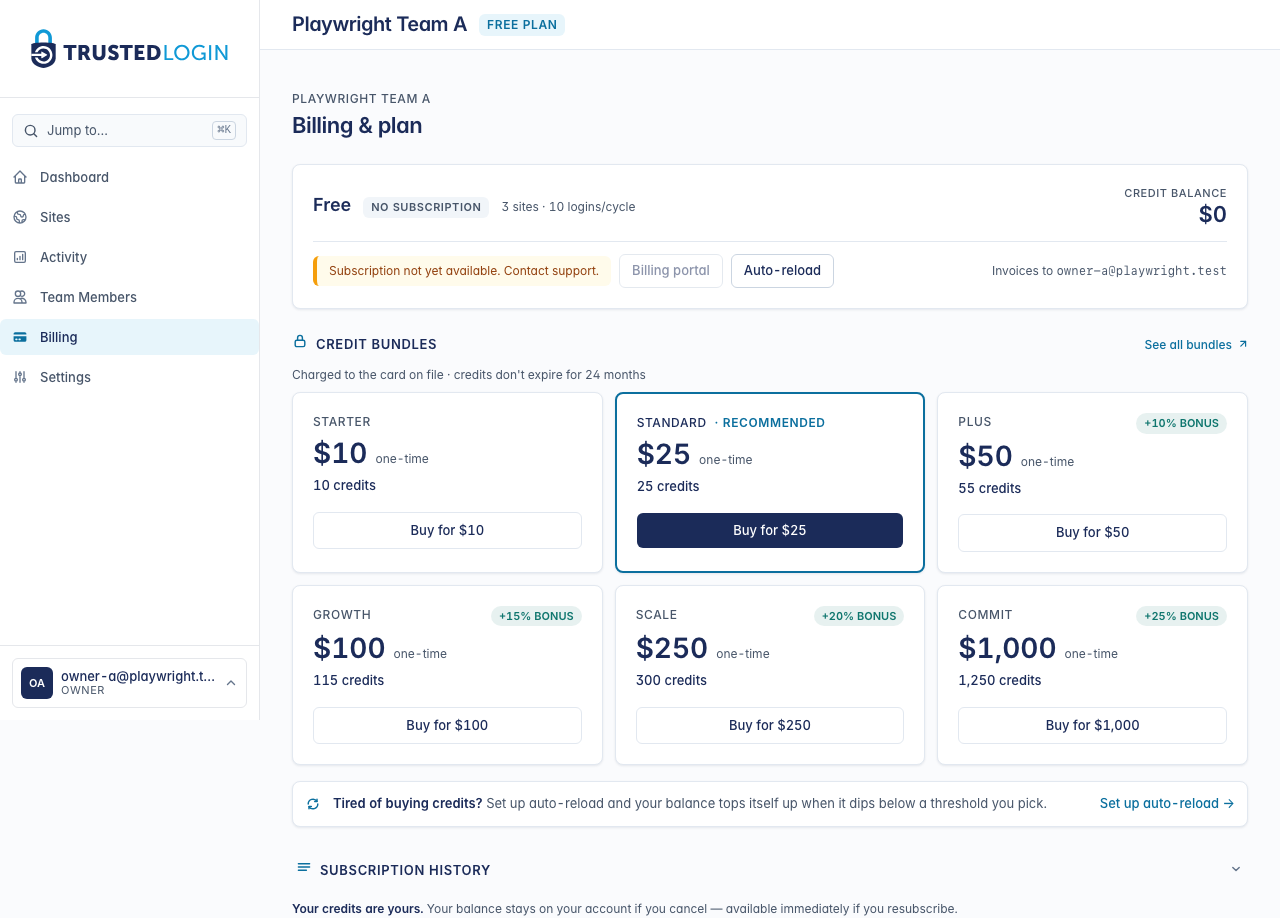
Auto-reload lives inside Billing & plan. Click Billing in the sidebar to get there. The page shows your current plan, your credit balance, and (if you've configured it) your auto-reload status at the top.
2. Open auto-reload settings
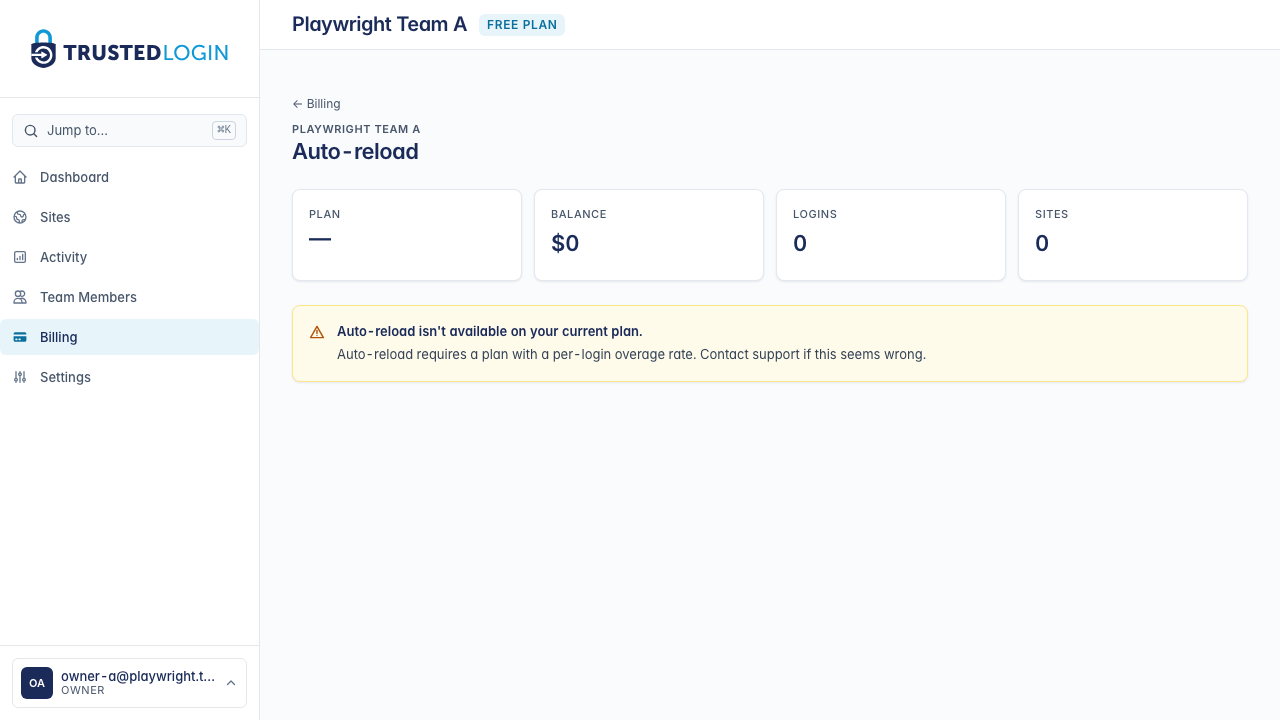
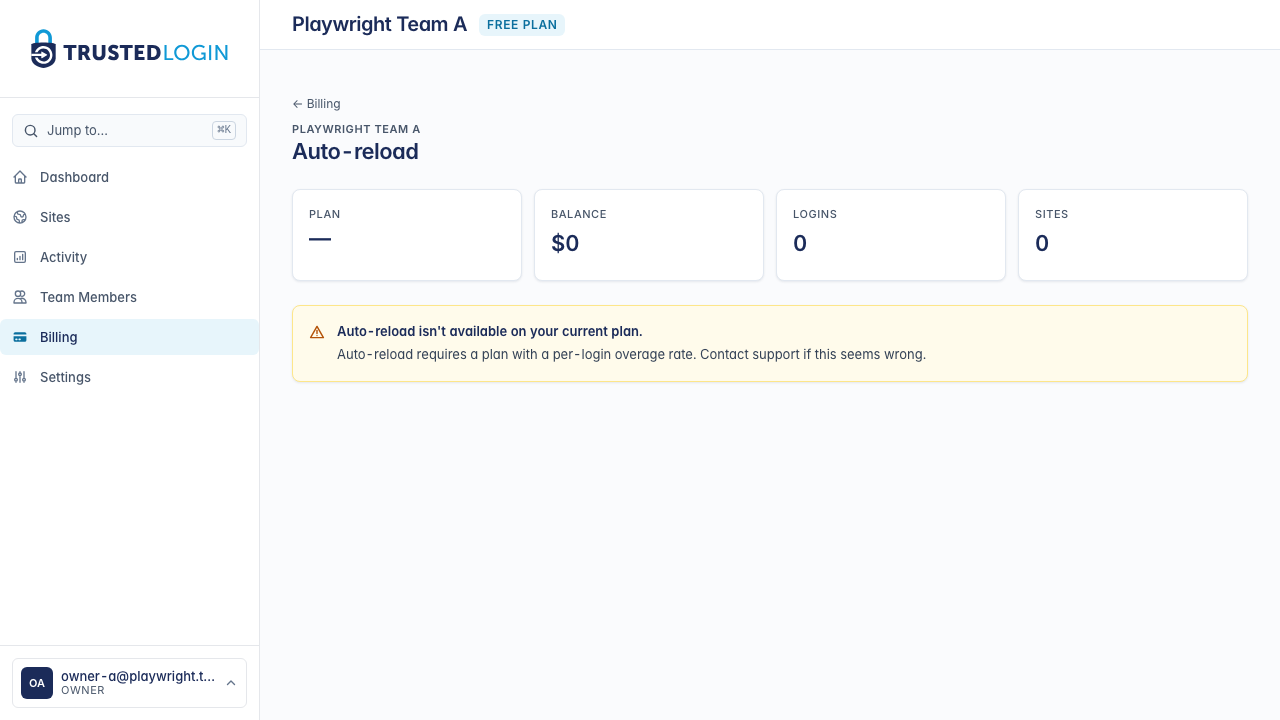
Click Auto-reload in the header of the Billing page, or use the Set up auto-reload link near the credit bundles. Either route opens the auto-reload configuration screen.
If auto-reload is currently off, the top of the page says Not set up; otherwise it shows your current threshold and bundle.
3. Choose when to reload and how much
There are three settings that together shape when and how much auto-reload costs you:
- Reload when my balance drops below — the trigger. When your credit balance slips under this number, auto-reload fires. A common setting is $5 — enough headroom to cover a few more logins while the card charge settles.
- Reload with — the bundle that gets purchased each time. Bigger bundles cost more per reload but carry a bonus (a $100 bundle gives you $115 in credits) and charge you less often.
- Monthly cap — the most auto-reload will spend on your card in any one billing cycle, no matter what. If a customer ever went rogue and burned through credit in a loop, this is the ceiling that stops the bleeding.
Click Save and auto-reload is live.
4. What happens on a reload
When your balance drops below the threshold, TrustedLogin charges the card on file for the bundle amount, credits your balance immediately, and sends a receipt to your billing email. The transaction shows up in your subscription history with the bundle name and the Stripe payment ID.
If a charge fails — card expired, insufficient funds, something on the bank end — auto-reload pauses itself, sends you a notice, and leaves your balance alone so you don't accidentally land in a bad state. Update your payment method and auto-reload resumes on the next trigger.
5. Turn auto-reload off whenever you want
Auto-reload is off by default, and you can turn it back off the same way — flip the switch at the top of the auto-reload page to Off and click Save. Any credits you already have stay in your balance; they don't expire while your team is active.
If auto-reload emails are landing in spam or you want to route them to a different address, adjust that on your Billing page.
Choosing the right threshold and bundle
If your team burns roughly $20 in credits a week, a common setup is: reload when balance drops below $5, reload with the $25 Standard bundle, cap at $100 per month. That covers a normal week's support with a little headroom and hard-caps any surprise.
Teams doing heavier support work should go with a larger bundle (the bonus credits on $100 and up are worth it) and raise the monthly cap to match their normal monthly burn.
If something goes wrong
A failed charge pauses auto-reload until you fix the payment method. You'll get an email at your billing address, and the banner at the top of the Billing page shows what went wrong. Fixing the card and saving your billing settings resumes auto-reload on the next trigger.