Regenerate your API keys
If you think your TrustedLogin Public Key or Private Key has leaked — it showed up in a log, a terminated employee had access to it, or you're just due for a rotation — regenerating is a two-click action. The tradeoff is that your Connector plugin needs updating immediately; keys rotate atomically, not in an overlap window.
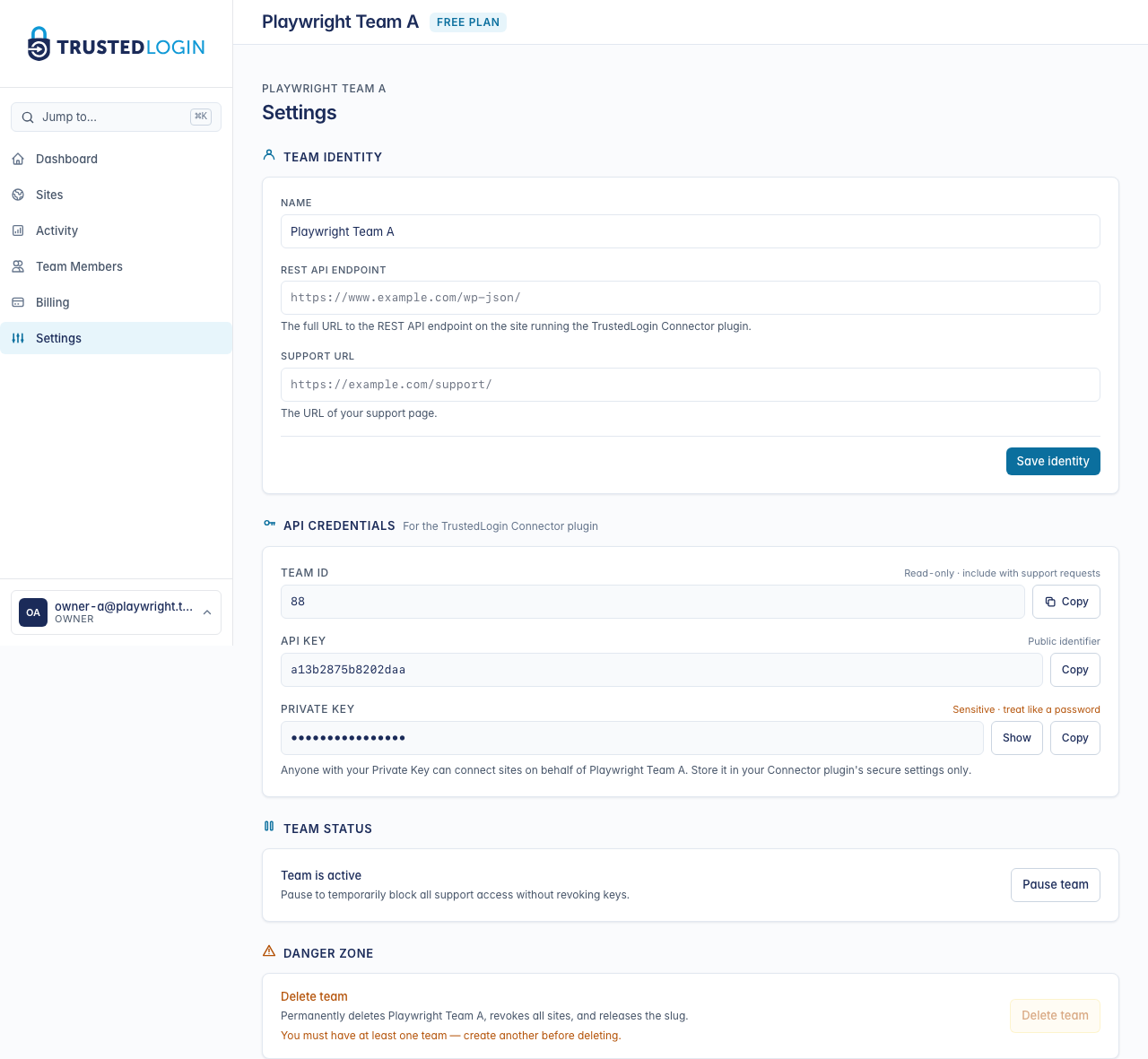
1. Open Team Settings
Rotating keys lives on the Team Settings page. Only team owners can do this — the action will be hidden if you're signed in as a member or admin.
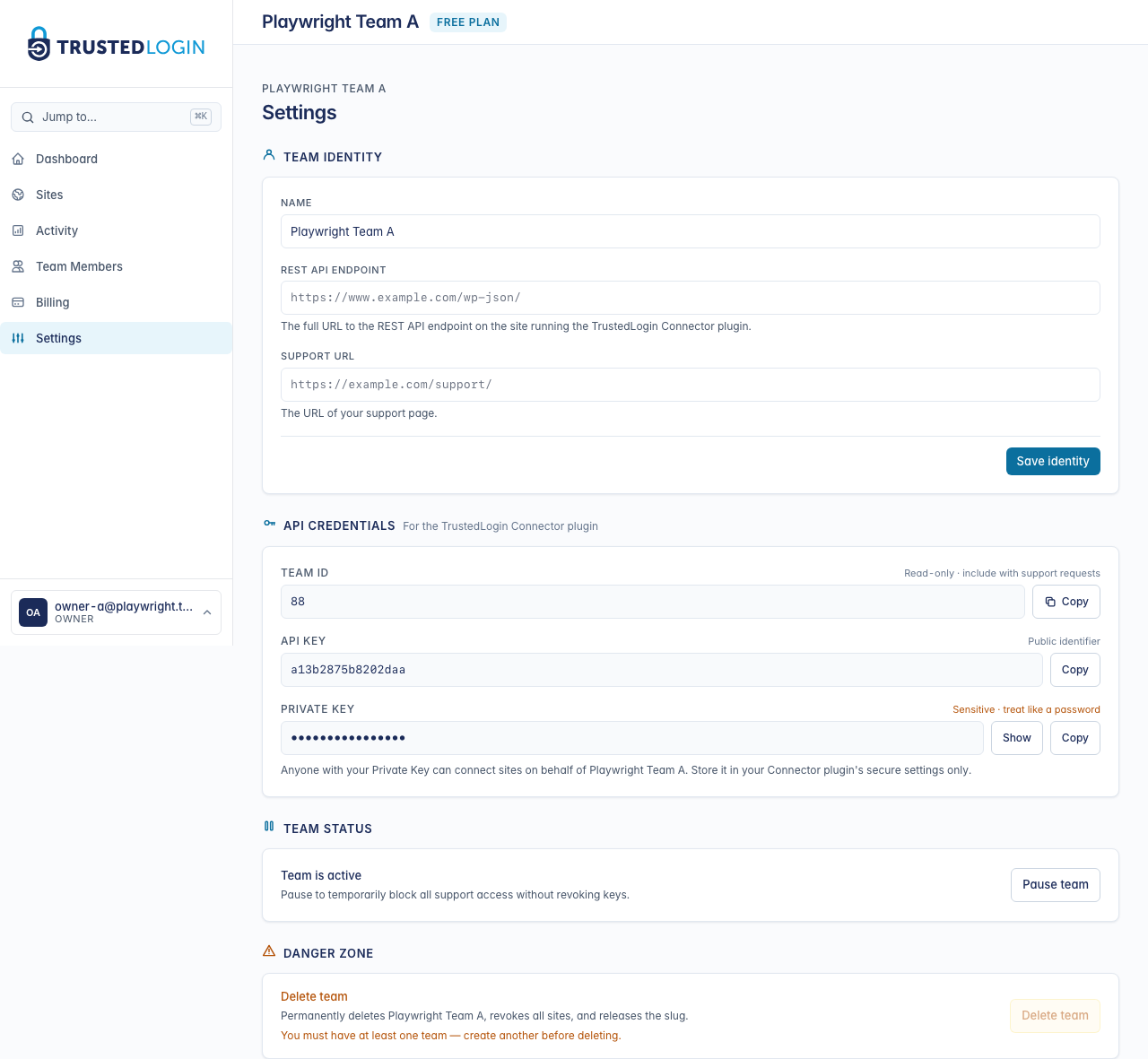
2. Find the API credentials section
Scroll to API credentials. The three values you originally pasted into the Connector live here: Account ID, Public Key, and Private Key. You'll regenerate the two keys (the Account ID never changes).
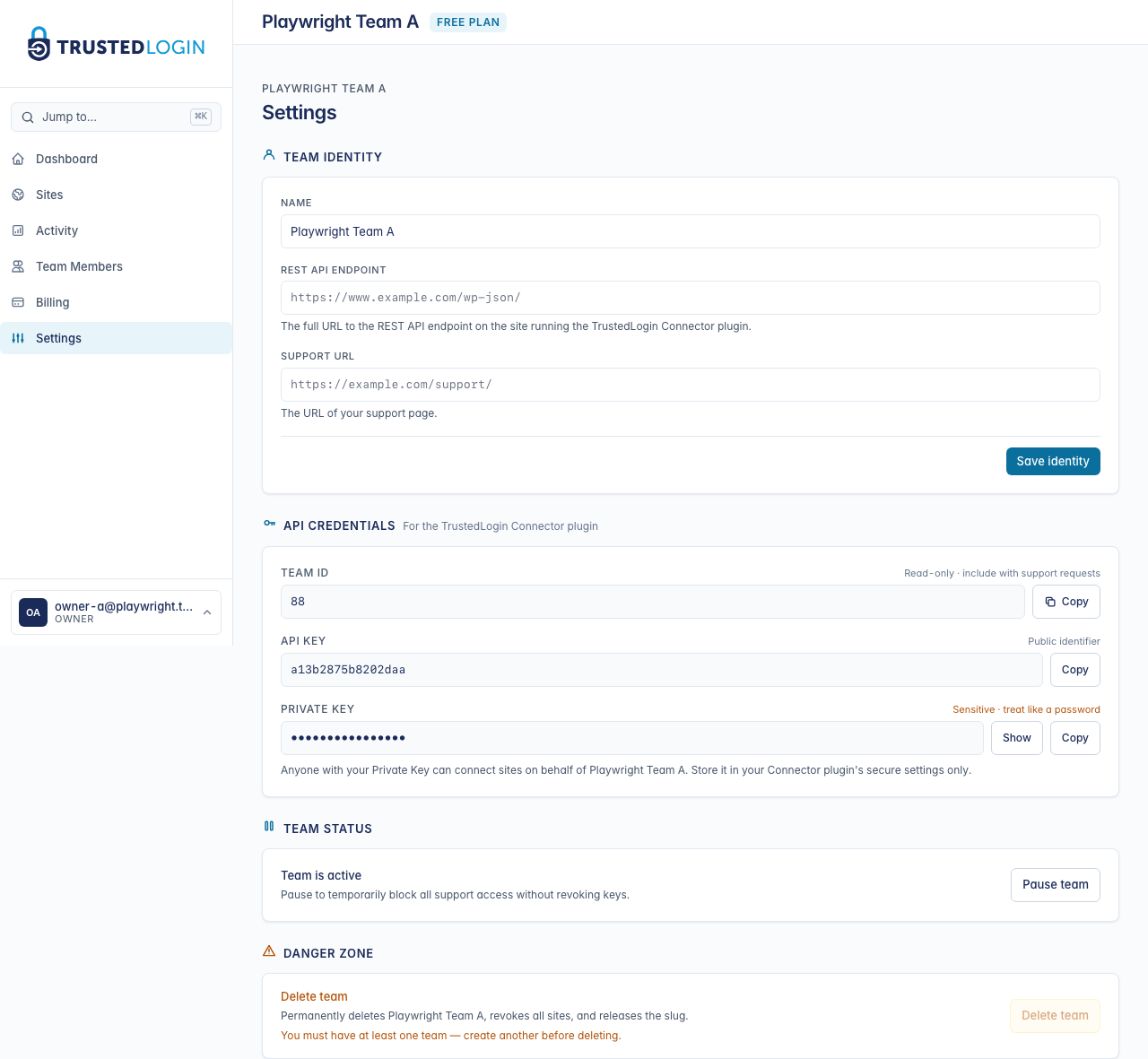
3. Click Regenerate keys
Click Regenerate keys. TrustedLogin asks for confirmation — this is deliberate, because the moment you confirm, the old keys stop working. Any Connector plugin that's still using the old keys will immediately show Connection failed until someone updates it.
Confirm, and TrustedLogin generates a fresh Public Key and Private Key on the spot.
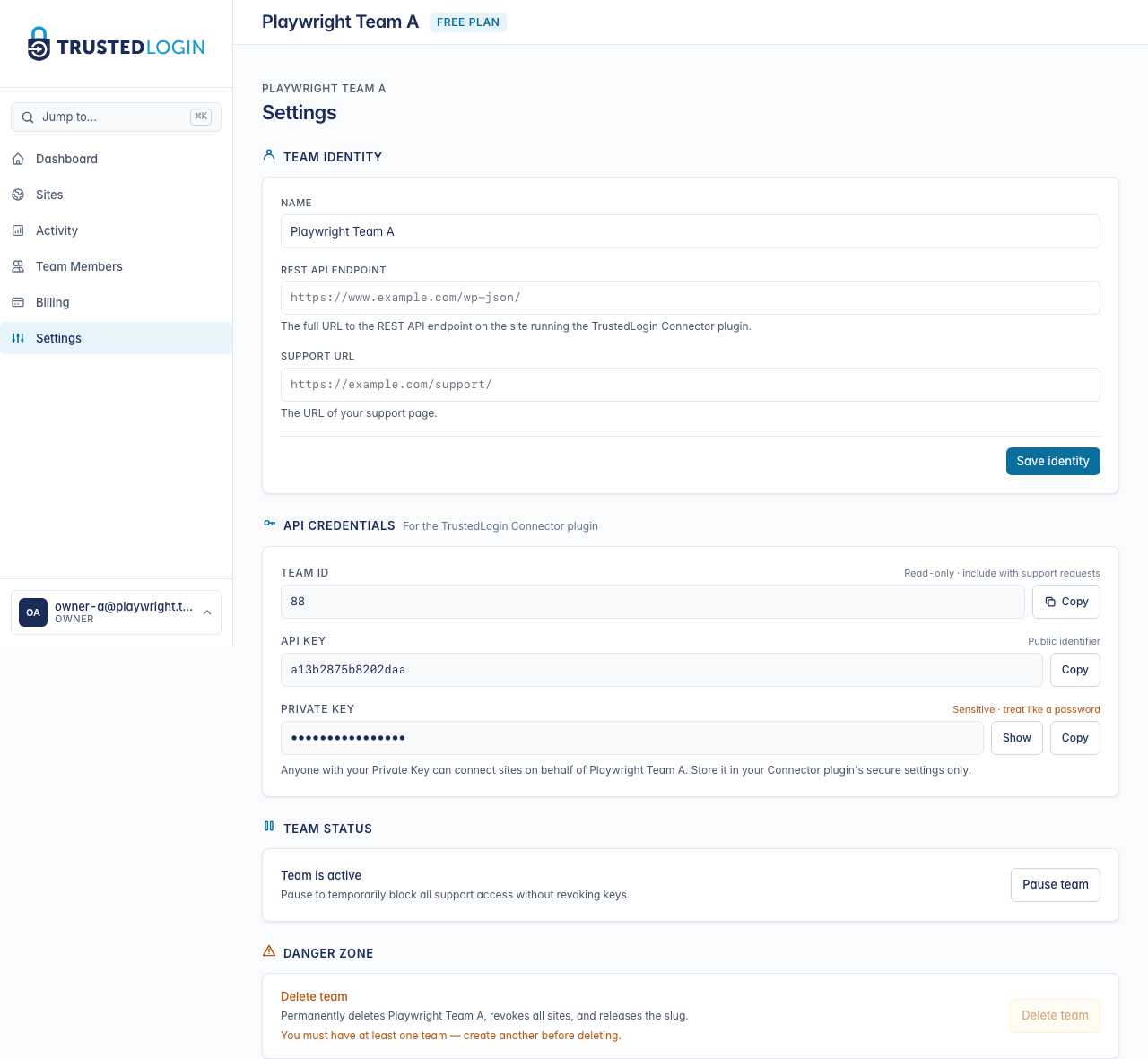
4. Copy the new keys and paste them into the Connector
Copy the new Public Key and Private Key. In a separate browser tab, open your Connector plugin settings in WordPress (TrustedLogin in the sidebar, then Edit on the team). Paste the new values over the old ones and save.
Reload the Teams page in the Connector — you should see All Teams Connected again within a few seconds. If you don't, double-check the keys have no leading or trailing whitespace (a common copy-paste issue).
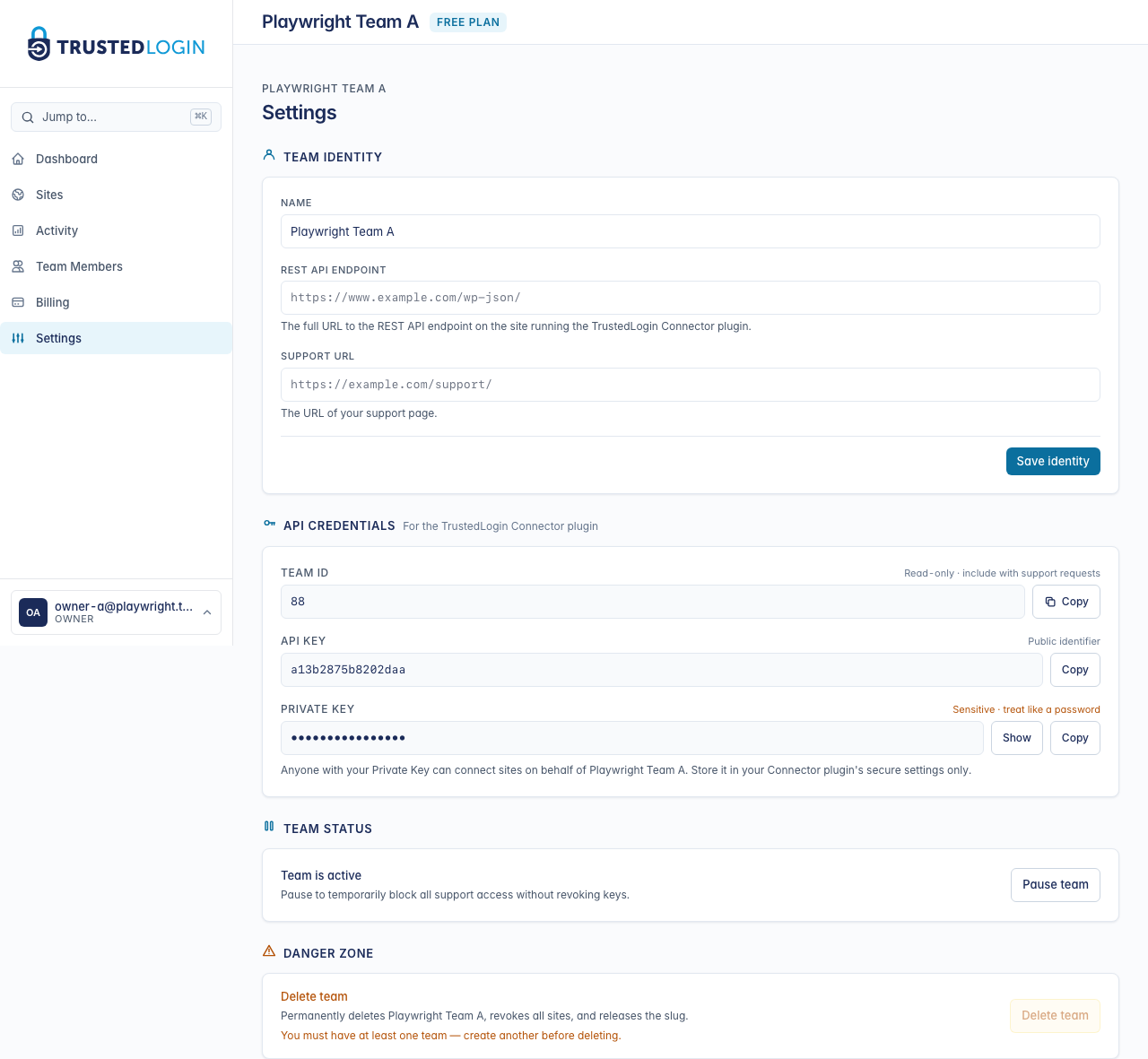
5. Verify access still works
Back in TrustedLogin, try logging into any of your Sites. A successful login from a site means the full chain (TrustedLogin → Connector → customer site) is using the new keys end to end.
If you do still have the old keys saved somewhere — a password manager, a team notes doc — delete them now. They're dead values; leaving them around invites a copy-paste mistake later.
When to rotate
- Suspected exposure. A key appeared in a log file, a screen-share recording, a Slack message, a public repo, an error report sent to a vendor — any time a key has touched a surface it shouldn't have, rotate.
- A teammate left. If that teammate had access to your Connector plugin settings, rotate on their last day.
- Periodic hygiene. Some teams rotate quarterly or after each major release, just as a matter of policy.
What the rotation does NOT affect
Your existing access grants from customers are not invalidated by a key rotation. Each grant is scoped to an individual customer site, with its own identifier and expiration — they keep working while the fresh Public and Private Keys flow through the Connector for new grants.
Account ID stays the same. Only the two keys change.