Log in to a customer site
Logging into a customer's WordPress site is the reason TrustedLogin exists. Once a customer has granted you access from their side (see the Client SDK guide for how that button appears on their end), the grant shows up on your Sites list and you're one click away from being inside their admin.
1. Open the Sites list
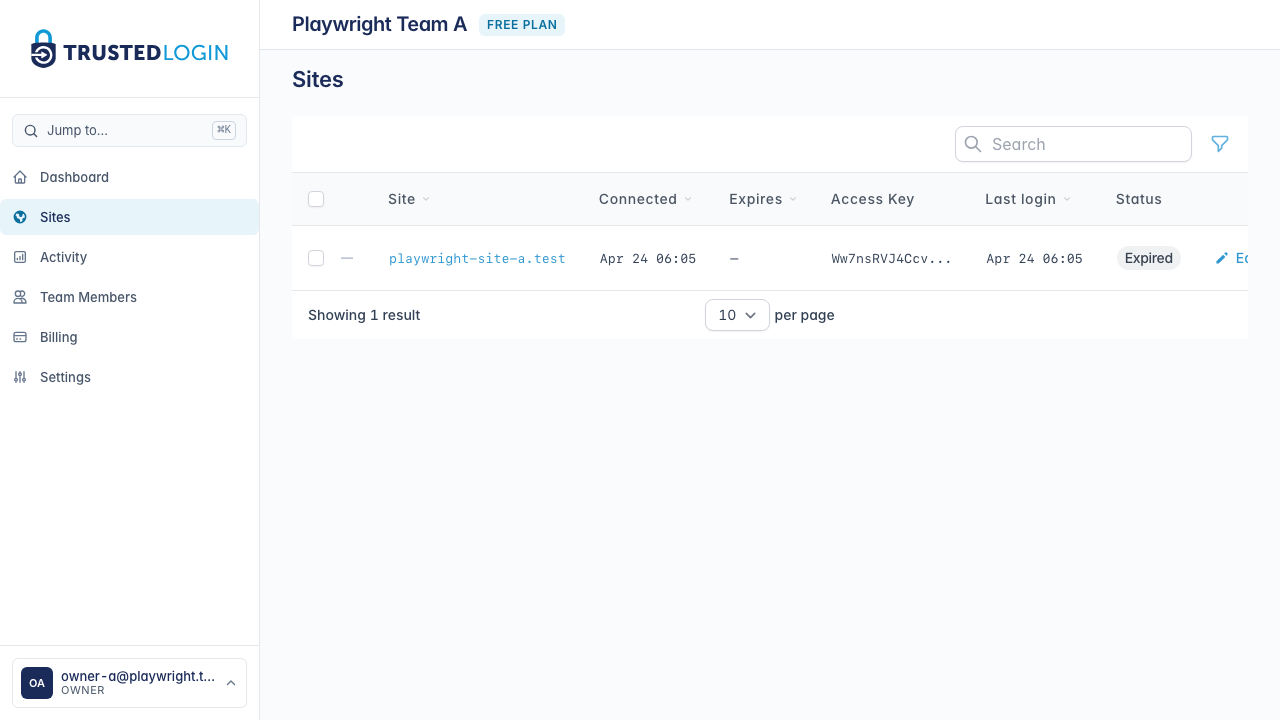
Click Sites in the sidebar. Every WordPress site one of your customers has granted you access to shows up here — one row per site, newest grants at the top.
2. Find the site you want to log into
Each row shows the site URL, the support role the customer granted, and when the grant expires. Grants have a lifetime (usually a week) so you don't end up with permanent keys to every customer site you've ever helped — if the row says Expired, you'll need to ask the customer for a fresh grant before you can log in.
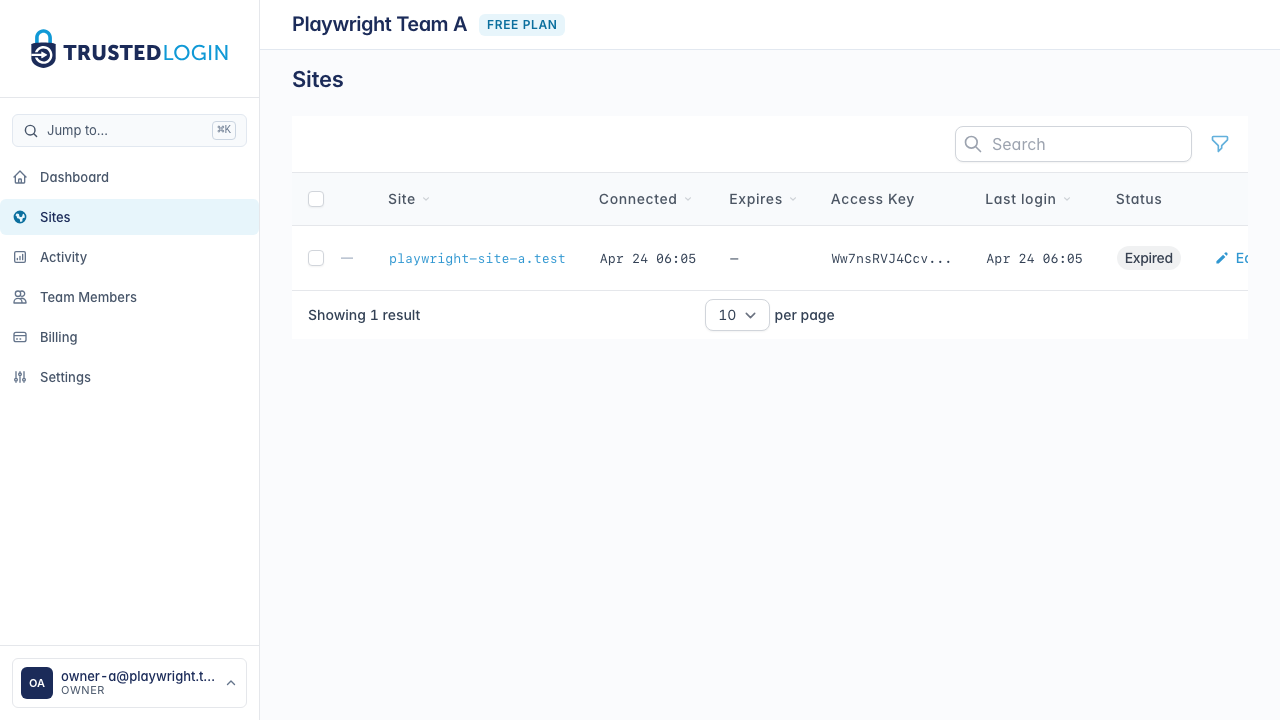
Use the search box or filters at the top to narrow down to the site you're looking for. The column on the far left is a one-click Log in button.
3. Click Log in
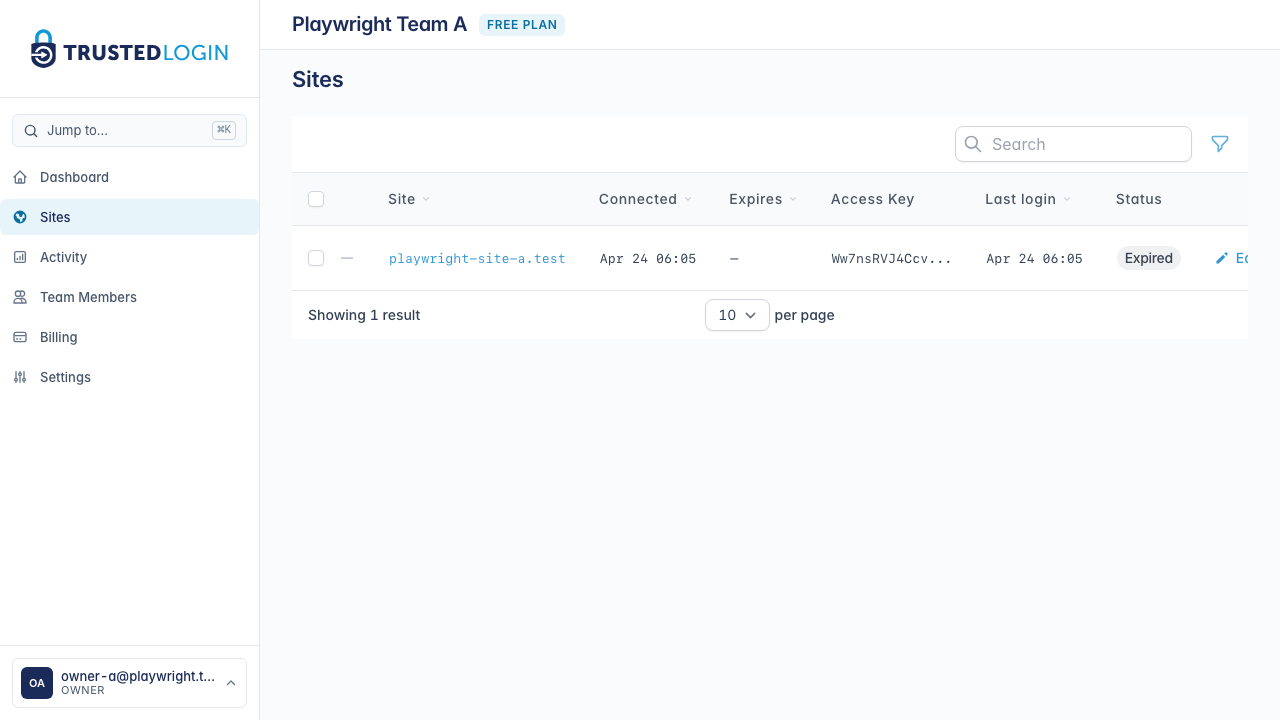
Clicking the Log in arrow opens the customer's WordPress admin in a new tab — already signed in, as a temporary user with the role the customer granted. You don't need to know the customer's password. You don't need them to be online.
The new tab lands wherever WordPress's default landing is for that role (usually the Dashboard). From there, do whatever support work you need. When you're done, just close the tab — no need to "log out," because the grant itself expires automatically.
4. See the full site record
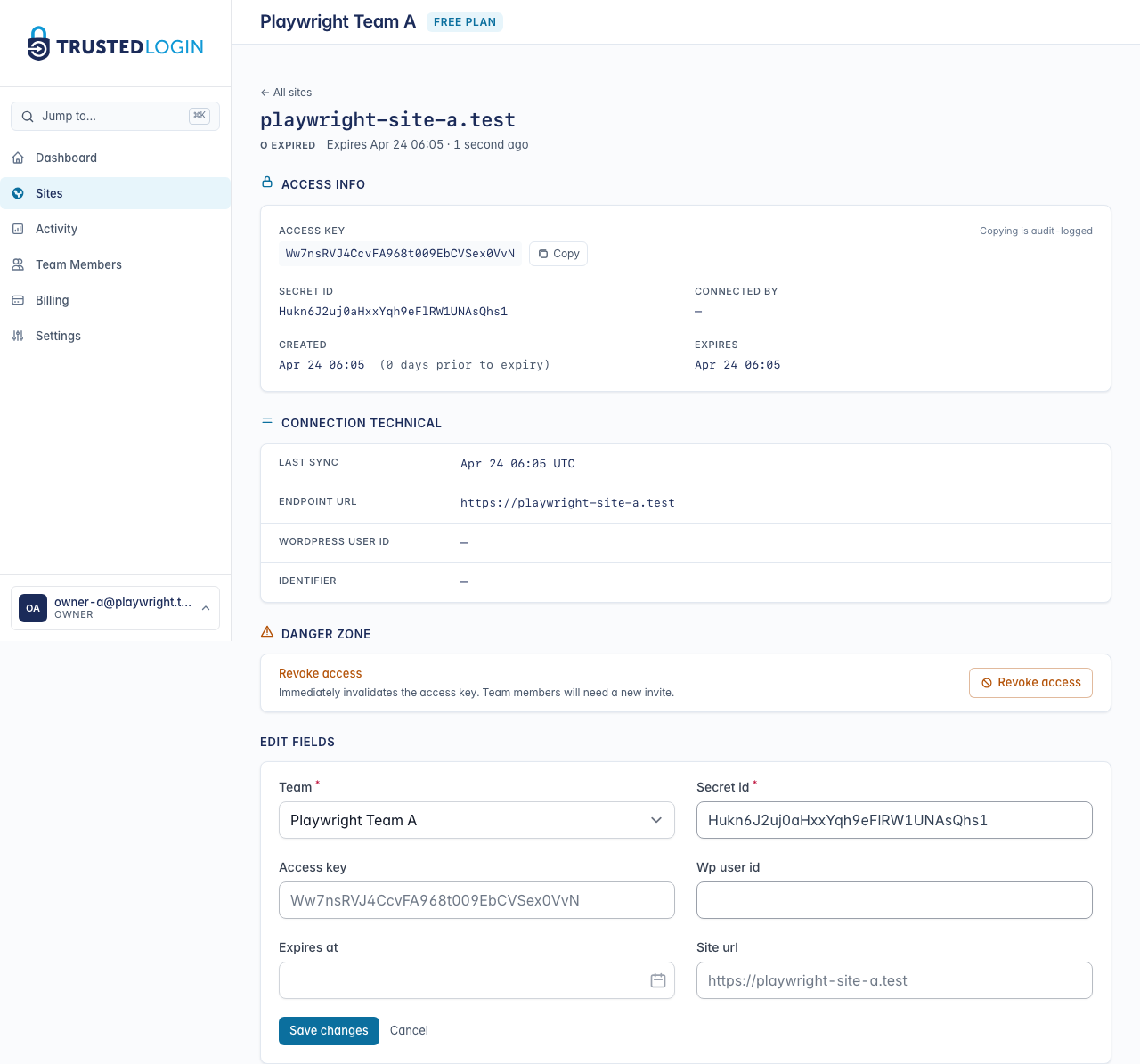
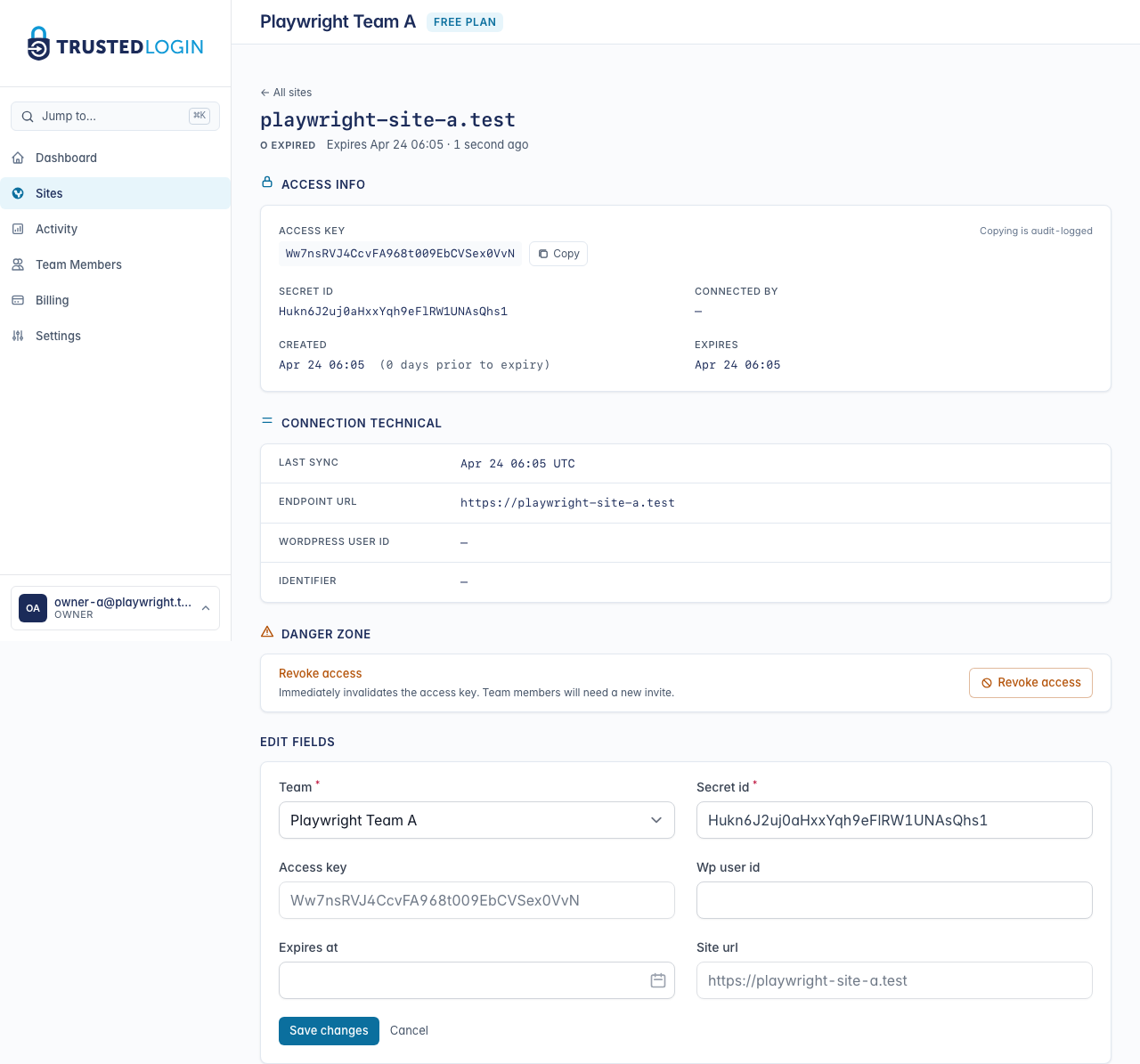
Click anywhere else on the row — the site URL or the Edit action — to see the full site record. This page shows the access key, endpoint URL, who on the customer side granted the access, and every log-in to this particular site.
The Log in to site button at the top does the same thing as the arrow in the list — both open the customer site through the Connector. The Copy button next to the access key is audit-logged, so you have a paper trail any time a credential leaves this screen.
5. Revoke access when you are done
Grants expire on their own, so you rarely need to revoke them manually. But if a customer asks you to (or if something feels wrong — a key appearing in a log, a shared machine, a departing teammate), scroll to the Danger zone at the bottom of the site detail page and click Revoke access.
Revoking is immediate and irreversible: the access key stops working, your team can't use it again, and the customer would need to generate a fresh grant if they want you back in.
What happens if a login doesn't work
The first thing to check is whether the grant is still active. If the row says Expired, the customer needs to generate a new grant — the old one isn't recoverable.
If the grant shows as active but the Log in button takes you to a WordPress login form instead of landing you signed in, something on the customer's end is wrong: the Connector plugin is likely inactive or the identifier TrustedLogin uses to route the login doesn't match. The Connector troubleshooting guide covers the common causes.