Login-feedback flow
When a support agent clicks a TrustedLogin access-key link, the Client SDK opens the customer's site and either logs them in or blocks the request. Each outcome now shows the agent a clear, actionable message instead of silently landing on the home page — while still refusing to leak anything useful to an attacker probing the login.
This page walks through every outcome an agent or admin can see.
1. Agent grants access
The vendor enters the customer's site URL into the TrustedLogin form and clicks Grant Access.
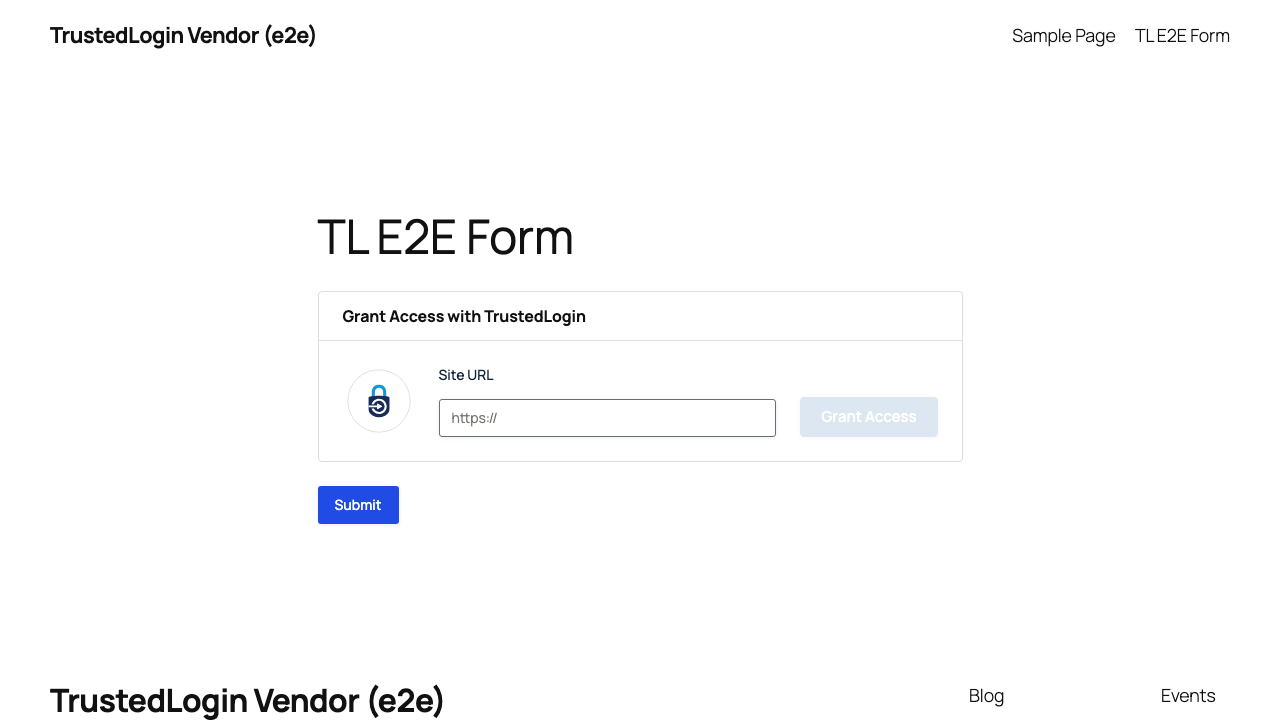
Once the grant succeeds, the form shows the access key and a Revoke affordance.
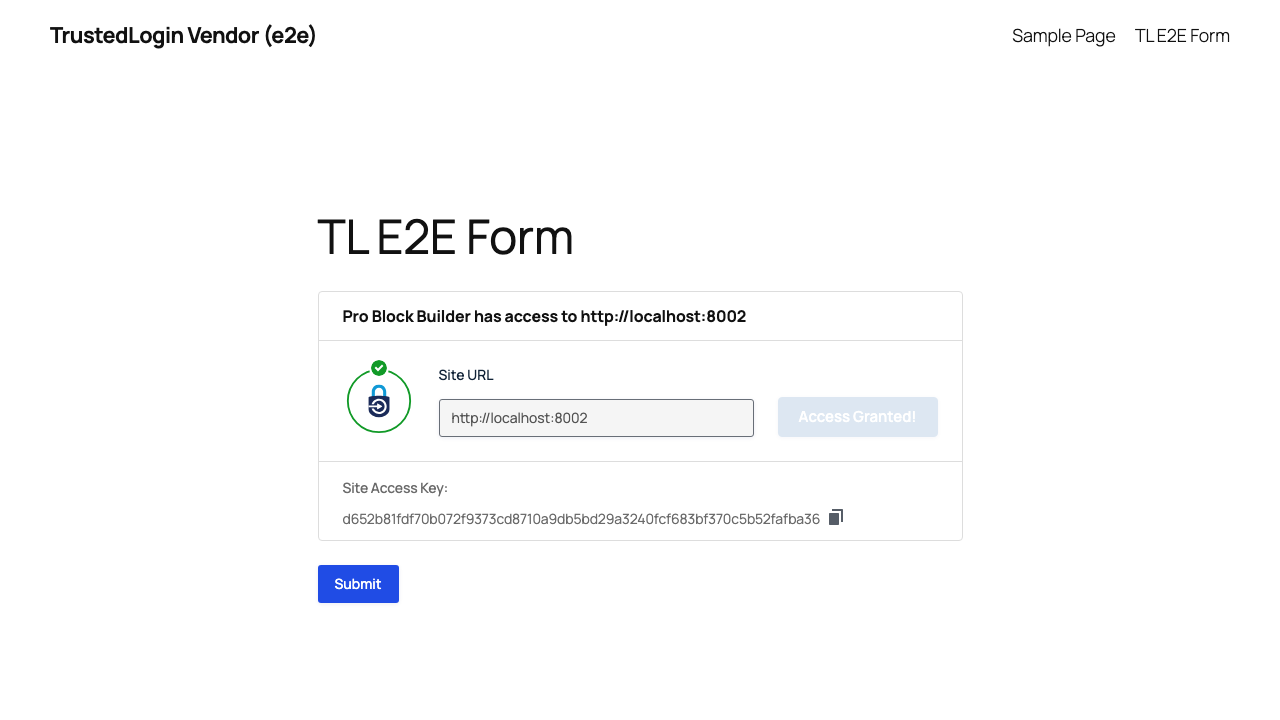
The vendor hands the access key to the agent (or uses the access-key login link themselves). The rest of this page follows the agent as they land on the customer site.
2. Success — lands in wp-admin with a banner
When the login succeeds, the agent is dropped into wp-admin with a dismissible success banner above the dashboard.
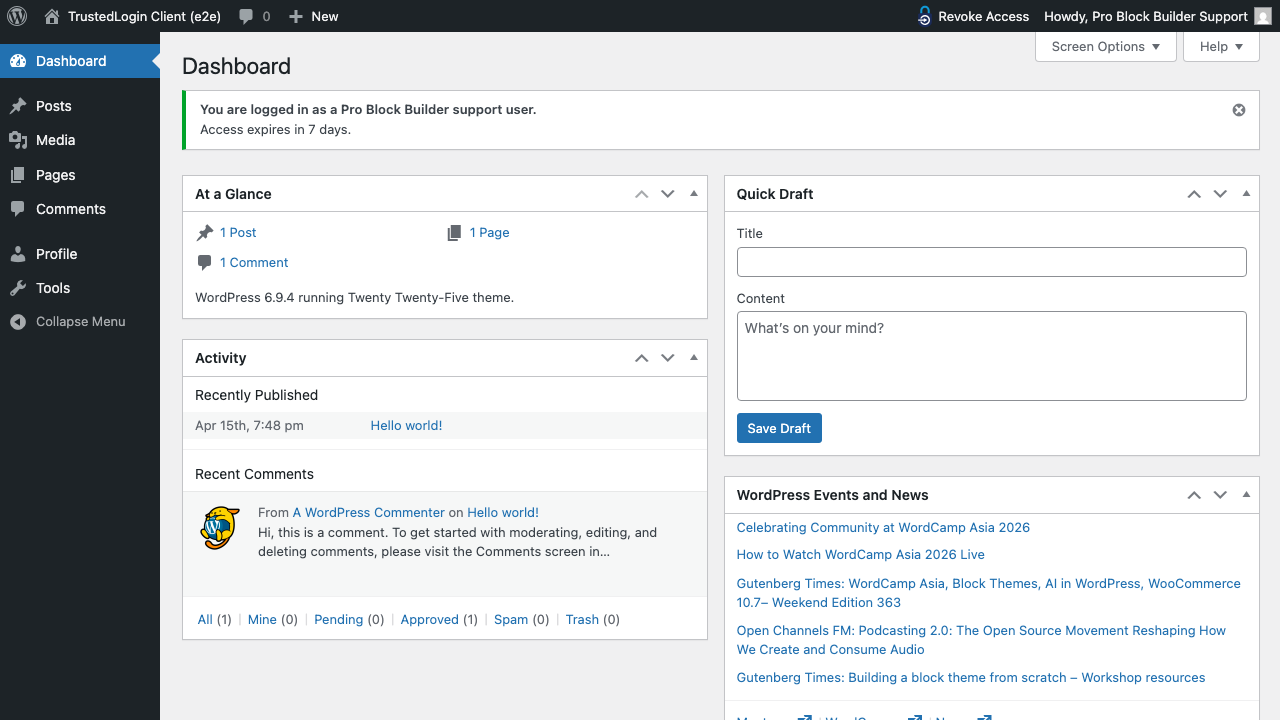
Banner copy: "You are logged in as a <vendor name> support user. Access expires in 7 days."
The banner is only shown to the freshly-logged-in support user — regular admins never see it, even if they construct the URL directly.
3. Already-logged-in edge case
Heads-up: it's possible to hit a TrustedLogin access link while already signed in to the target site — for example, an admin was testing something, then clicked their own grant link. When this happens, TrustedLogin does not swap their session for a support user. The existing login stays put and a calm info notice explains what happened.
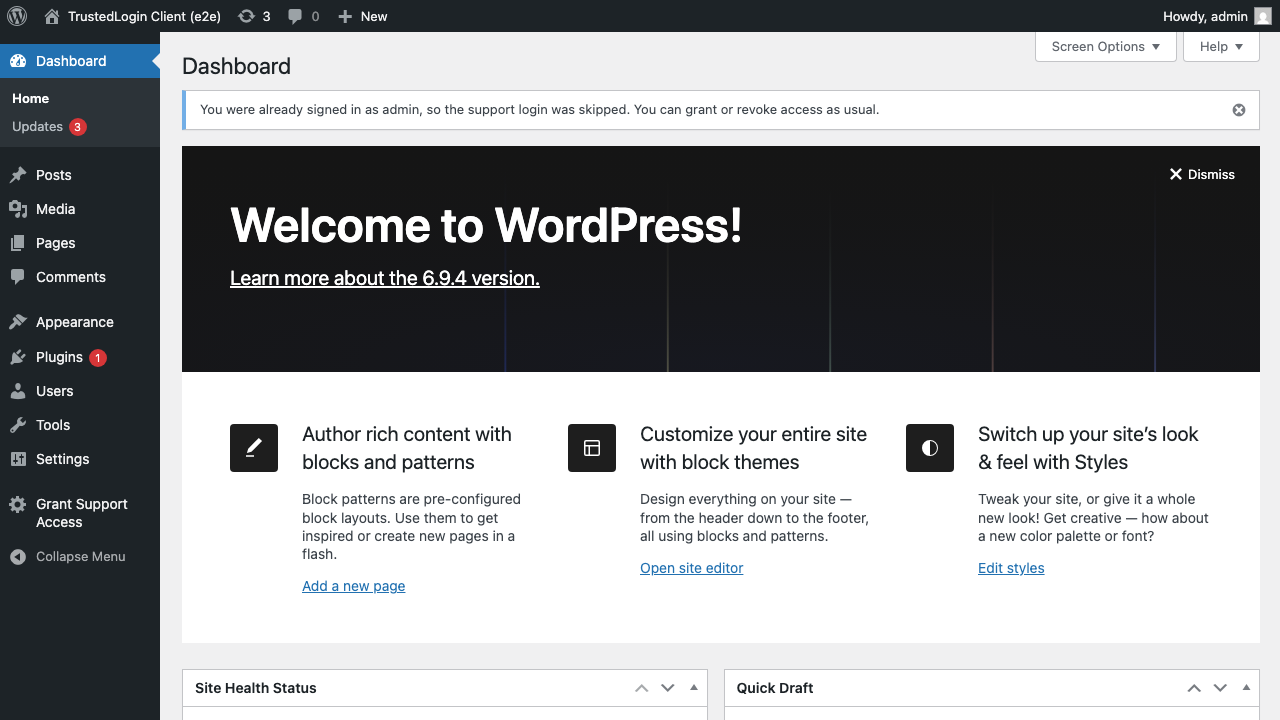
Notice copy: "You were already signed in as <display name>, so the support login was skipped. You can grant or revoke access as usual."
4. Security-check failure
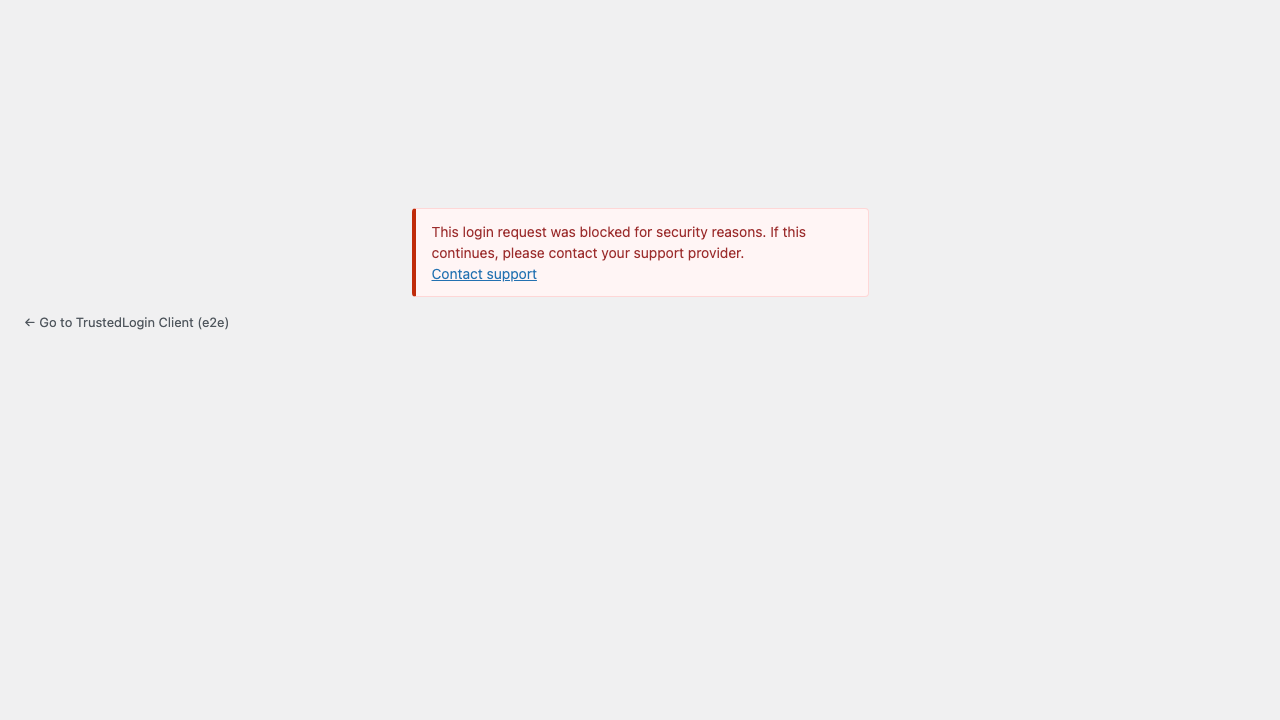
If the request fails a security check (unknown identifier, site in lockdown, brute-force threshold tripped), the agent sees a generic failure screen.
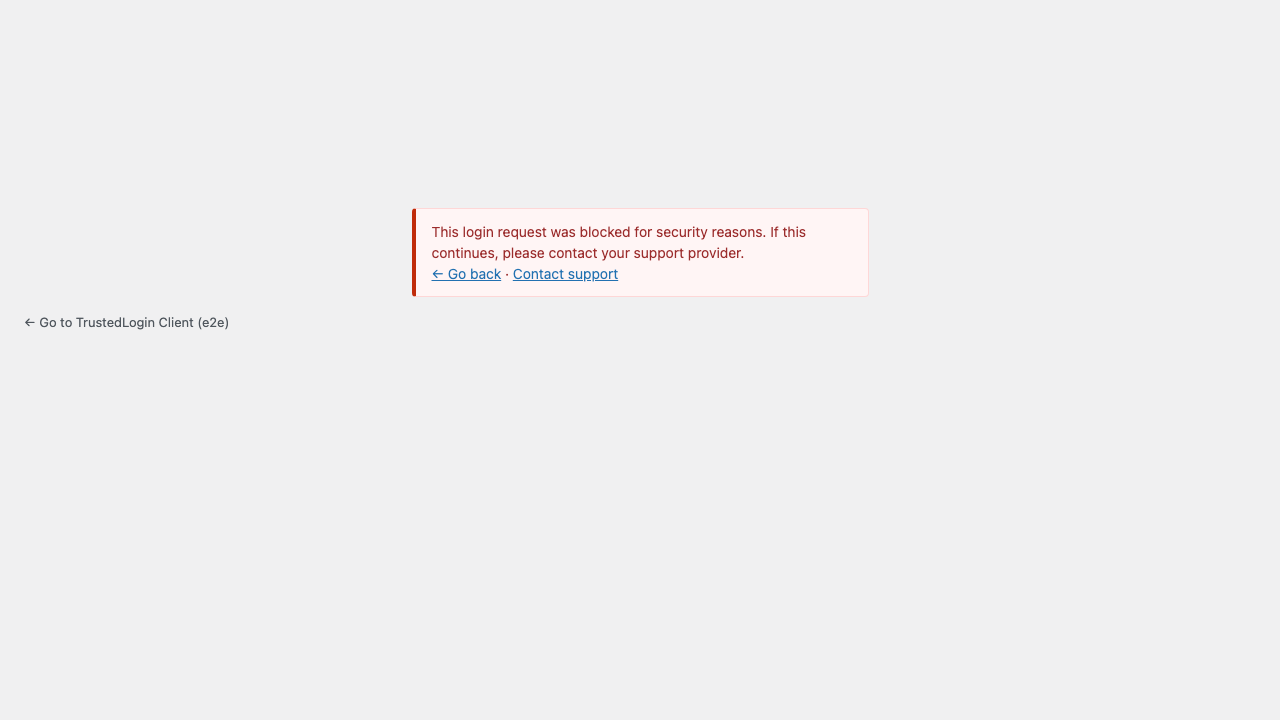
Message copy: "This login request was blocked for security reasons. If this continues, please contact your support provider."
The screen offers three navigation options:
- ← Go back — sends the agent back to the vendor surface they came from (see §6 below).
- Contact support — links to the
vendor/support_urlconfigured in the integrator's setup. - A back-to-site link so the agent can exit cleanly.
The message is deliberately vague. The exact reason (which check failed, which identifier was tried, what the endpoint was) is never surfaced in the UI, in the URL, or in the page source — an attacker probing the form learns nothing from the response.
5. Login failed (access expired)
Same screen, different cause: the identifier was recognized but the support user's access has expired or was already used.
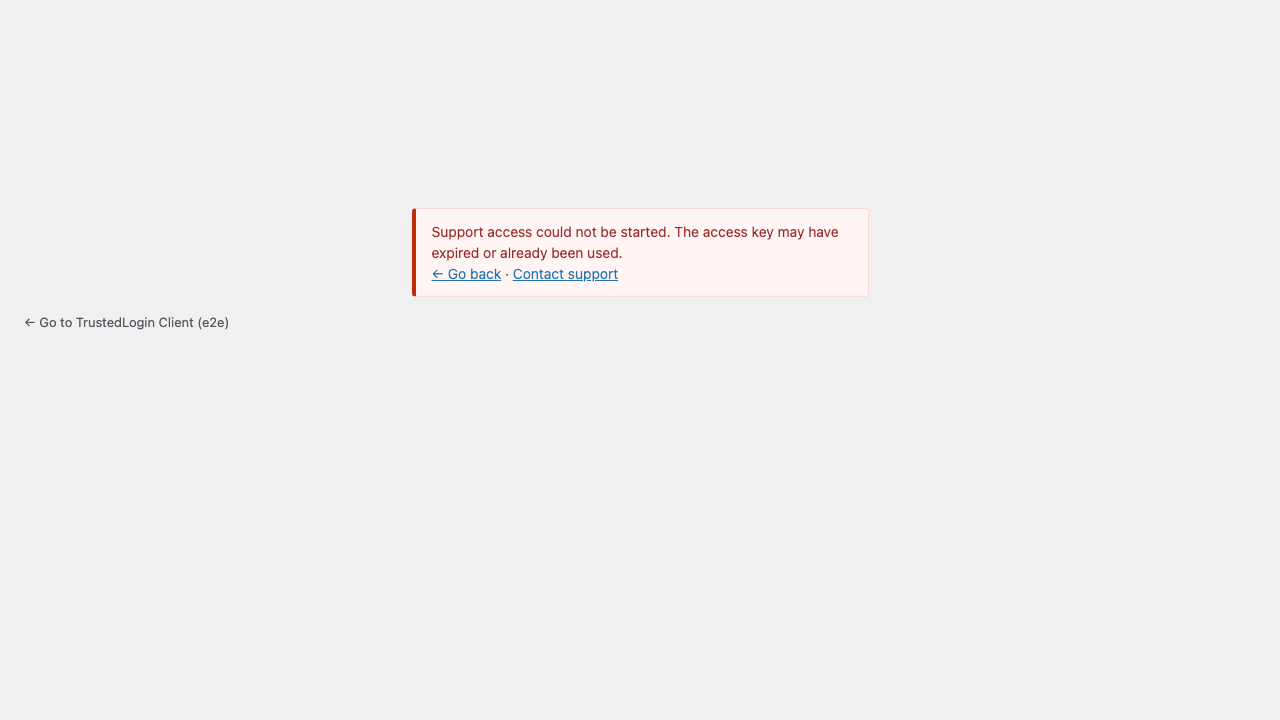
Message copy: "Support access could not be started. The access key may have expired or already been used."
The copy is different from §4 because the real-world cause for this branch is usually expiry or a one-time key that's already been used — both of which the agent can act on by asking for a fresh access key.
6. The "Go back" link
The ← Go back link on the failure screens returns the agent to wherever they started the support flow — a vendor dashboard, a help portal, a ticket page. Getting this link right while keeping it safe is why this section exists.
Default behavior
By default, a Go-back link is shown whenever the agent arrived from one of three trusted surfaces:
- the
vendor/websiteURL in the integrator's Client config, - the
vendor/support_urlURL in the integrator's Client config, - the customer's own site (
home_url()).
If the agent arrived from somewhere else — or from nowhere at all (direct URL, email client, automation) — the Go-back link is simply omitted. The rest of the failure screen still works.
6a. Multi-surface vendors — extending the allowlist
Vendors that run support from multiple surfaces (marketing site, help portal, white-label domains, staging environments) can add extra trusted URLs using the login_feedback/allowed_referer_urls filter:
add_filter(
    'trustedlogin/pro-block-builder/login_feedback/allowed_referer_urls',
    function ( $urls, $config ) {
        $urls[] = 'https://support.vendor.test/portal';
        $urls[] = 'https://status.vendor.test';
        return $urls;
    },
    10,
    2
);
Agents arriving from any of those hosts will see a working Go-back link. When the link is rendered, it points to the configured URL (e.g. https://support.vendor.test/portal) — not whatever deep path or query string the agent's browser actually sent:
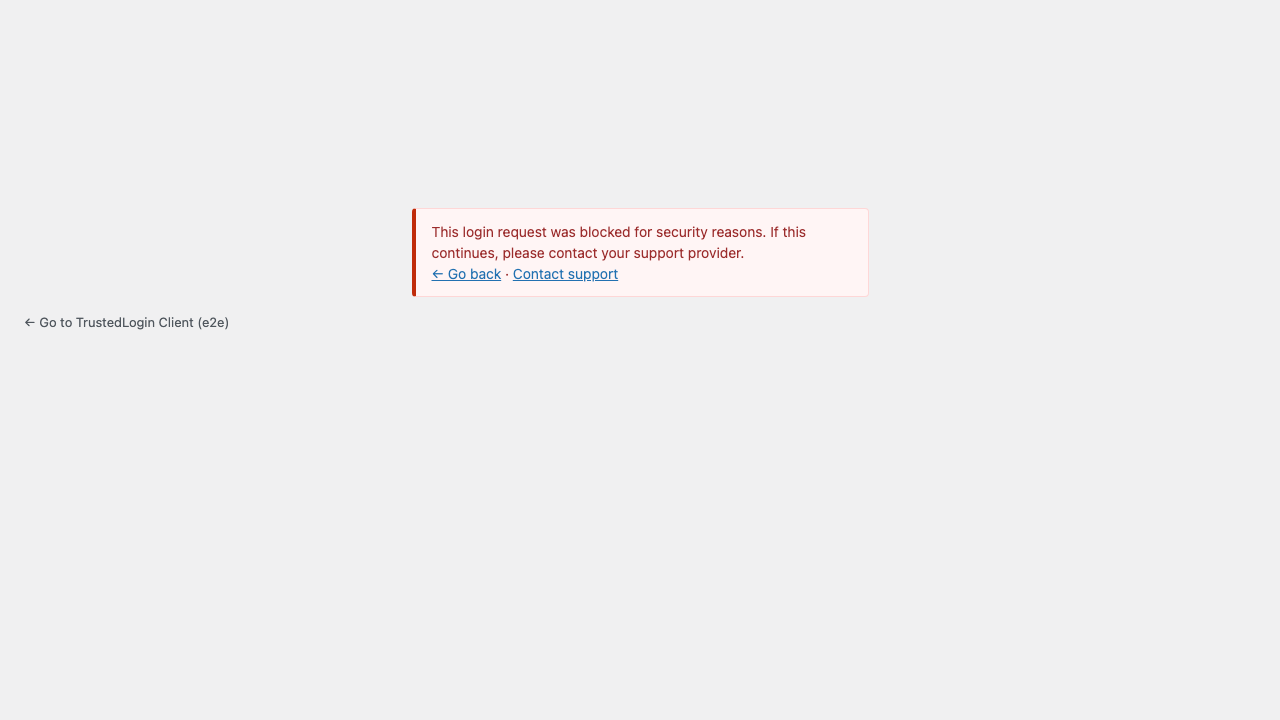
Full reference: trustedlogin/{namespace}/login_feedback/allowed_referer_urls.
6b. Spoofed origin — Go-back is quietly omitted
An attacker can forge the header the browser sends to claim the agent came from, say, evil.example. TrustedLogin compares the claimed origin against the allowlist, finds no match, and does not show a Go-back link at all. The attacker-chosen host appears nowhere on the page, so the attacker can't use the failure screen as a phishing surface.
6c. No origin at all
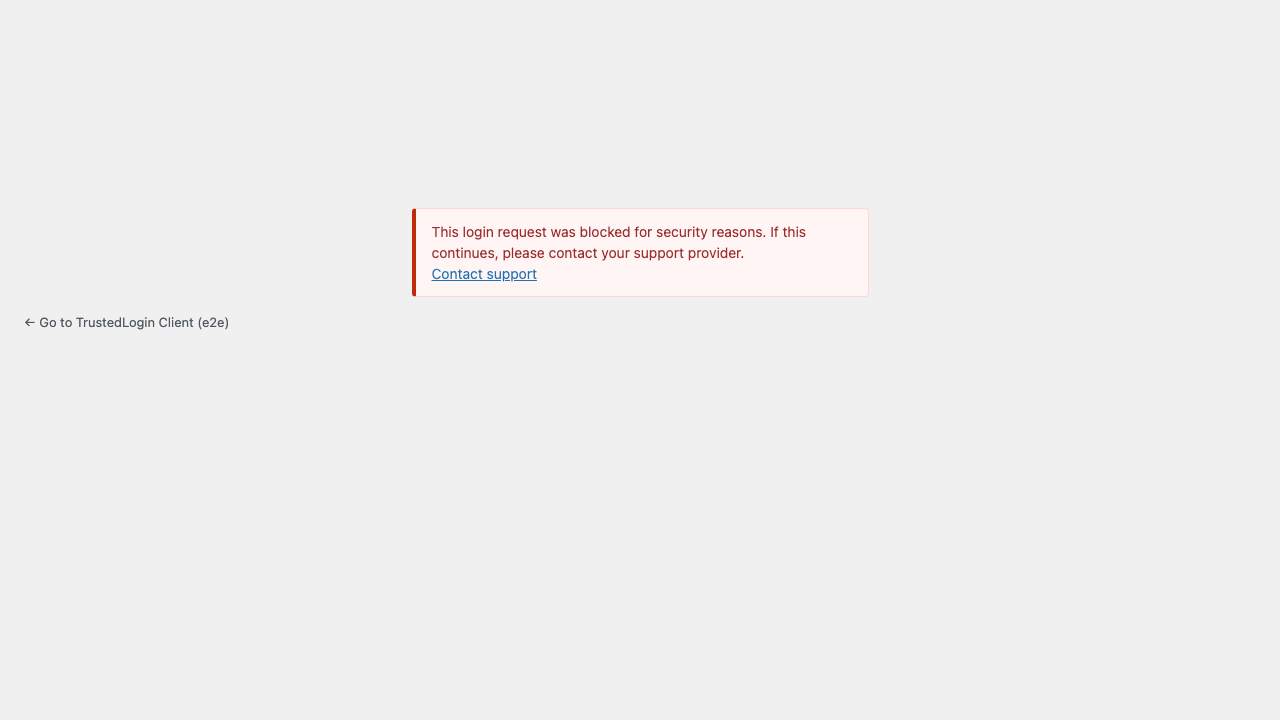
Direct URL, copy/paste, script-driven POST — sometimes there's no origin to go back to. The failure screen renders without the Go-back link; Contact support and the back-to-site link remain.
Why host-match, not URL-match
Browsers vary what they send (deep paths, tracking query strings, anchor fragments). Requiring an exact URL match would break the Go-back link for real agents constantly. TrustedLogin matches on host only — and then renders the configured URL rather than the raw sent value — so legitimate flows always work and attacker-controlled data never reaches the page.
7. Crafted URLs show nothing
Anyone can construct a URL like wp-login.php?action=trustedlogin&tl_error=login_failed and paste it into a victim's browser. Without a matching internal signal from an actual failed login, TrustedLogin shows nothing — just the standard WordPress login form.
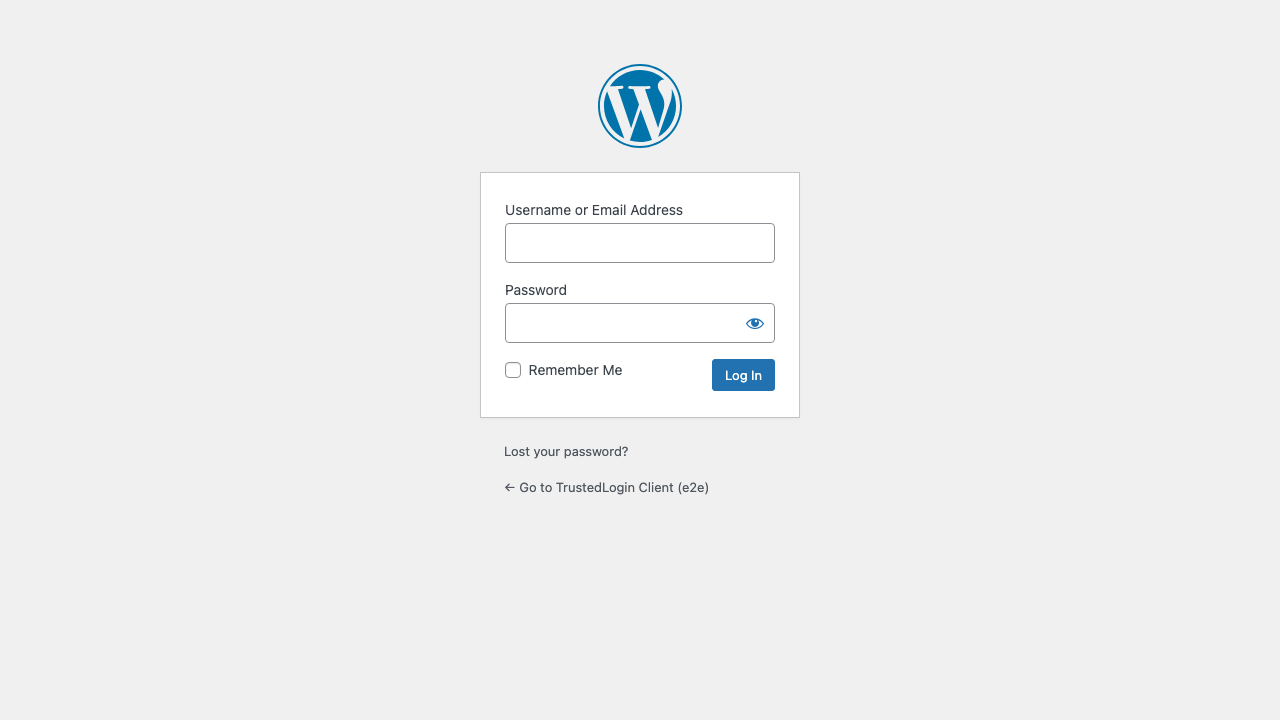
This blocks the "your support login failed, click here to retry" phishing shape, where an attacker would otherwise craft a convincing fake TrustedLogin error screen.
What the agent sees, by scenario
| Scenario | What the agent sees |
|---|---|
| Malformed or probing POST | Plain home page — nothing that hints at TrustedLogin |
| Valid grant, login succeeds | wp-admin with a green success banner |
| Agent is already signed in | wp-admin with an info notice explaining the skip |
| Unknown access key / lockdown | Generic "blocked for security reasons" screen |
| Expired or already-used access key | Generic "access could not be started" screen |
Crafted ?tl_error=… URL with no real failure behind it | Plain WordPress login form — nothing else |
| Agent came from a trusted vendor surface | Go-back link points at the matched configured URL |
| Agent came from an unknown origin | Go-back link is omitted; other actions remain |
Customizing for integrators
The Client SDK exposes these public hooks for this flow. Full signatures and examples live in the Client hooks reference.
trustedlogin/{namespace}/login_feedback/allowed_referer_urls— add extra trusted URLs for the Go-back link.trustedlogin/{namespace}/template/auth/footer_links— add or modify the footer links shown underneath the failure message.trustedlogin/{namespace}/support_url/query_args— tweak the URL parameters appended when the agent clicks Contact support from a failure screen.